PyPhotoshop
Have you ever applied an Instagram filter to your photos to instantly change their look and feel? Images are just arrays of numbers, and we can manipulate these numbers to create various effects.
Photo editors such as Photoshop let you rotate, crop and resize photos or apply filters. In PyPhotoshop, you will implement these operations in Python by changing a matrix of pixel values.
One popular effect is the “negative” filter, which inverts the colors of an image, turning light areas dark and dark areas light (see Figure 1). This concept can be directly applied to grayscale images using a simple mathematical transformation: 255 - pixel_value. The formula inverts the grayscale value of a pixel, where pixel_value is the original grayscale value ranging from 0 (black) to 255 (white).
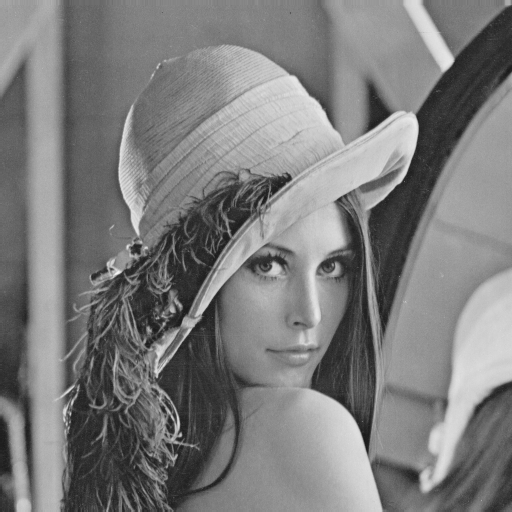
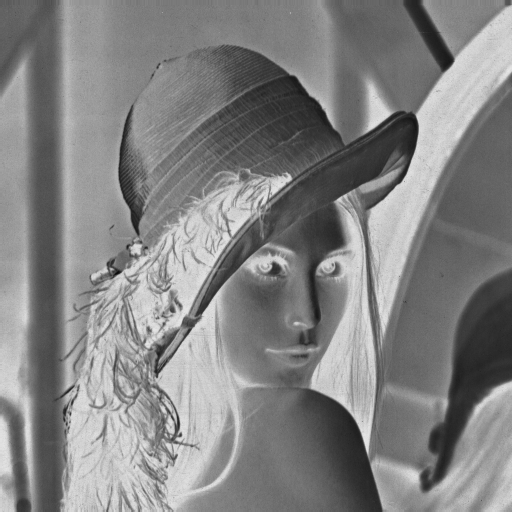
You will use nested lists, indexing, loops and arithmetic to implement image transformations and filters. The supplied helpers handle image files, so each function you write can be tested with a small matrix of numbers.
Images as matrices
A grayscale pixel is an integer from 0 (black) through 255 (white). A matrix has one list per row. rows[y][x] selects row y and column x, starting at 0 in the top-left corner. len(rows) is its height and len(rows[0]) is its width. Every input is nonempty and rectangular.
Each assessed function receives a matrix and returns a new matrix. Leave the input rows unchanged and create separate output rows. A return statement gives the result to the caller. Printing or saving alone does not return the matrix. Inputs satisfy each docstring’s ranges; invalid-input handling is not required. You can work through every example with ordinary lists, without image files.
Worked example: a negative filter
A negative filter subtracts each pixel value from 255. For example, a pixel with value 155 becomes 100. The supplied negative_filter function receives a matrix and returns new rows containing the inverted values.
To implement this filter effect in Python, we can read an image into a matrix, iterate over each pixel value, apply the inversion formula, and store the new pixel value in a separate matrix. The supplied image-loading function reads the file; negative_filter receives the resulting matrix (list of lists).
For an image with width 3 and height 3, the algorithm turns the 3x3 matrix of pixel values shown in Table 1 (a) into the inverted matrix displayed in Table 1 (b). It visits each cell, applies 255 - pixel_value, and appends that value to a new row. The original matrix contains the values before inversion, and the inverted matrix contains the values after applying the algorithm.
Table 1 compares the original and inverted values.
| Row | A | B | C |
|---|---|---|---|
| 1 | 155 | 105 | 55 |
| 2 | 135 | 75 | 35 |
| 3 | 115 | 95 | 15 |
255 - pixel_value.
| Row | A | B | C |
|---|---|---|---|
| 1 | 100 | 150 | 200 |
| 2 | 120 | 180 | 220 |
| 3 | 140 | 160 | 240 |
In Listing 1, we provide the complete implementation of negative_filter. For each input row, it creates an empty output row. The inner loop calculates the inverted value for each pixel and appends it to that row. After processing the row, the outer loop appends it to the result. The function returns the new matrix and leaves the original rows unchanged.
def negative_filter(rows: list[list[int]]) -> list[list[int]]:
    """Invert each grayscale value in a matrix.

    Parameters
    ----------
    rows : list[list[int]]
        Nonempty rectangular matrix of grayscale integers from 0 to 255.

    Returns
    -------
    list[list[int]]
        New rows containing 255 minus each input value. Leave rows unchanged.

    Examples
    --------
    >>> negative_filter([[155, 105, 55], [135, 75, 35], [115, 95, 15]])
    [[100, 150, 200], [120, 180, 220], [140, 160, 240]]
    """
    result = []
    for row in rows:
        inverted_row = []
        for pixel in row:
            inverted_row.append(255 - pixel)
        result.append(inverted_row)
    return result
Images and supplied helpers
The starter files contain the task files, images and image_utils.py.
image_utils.py is complete and supplied. Leave it unchanged. Its helpers handle image loading, grayscale conversion, saving and optional local display. Call the helpers to try your matrix functions on the supplied images.
Save the supplied image_utils.py beside your task files when working in a Python script. It provides complete utility functions to read an image into a matrix (list of lists), create an image from a matrix, save it, and display it. The matrices in the docstring examples illustrate the layout; the downloadable Lena image has 512 rows and 512 columns.
get_image_as_matrix(image_path)reads the file atimage_path, converts it to grayscale and returns a list of rows. For example,get_image_as_matrix('img/example.png')returns[[10, 20, 30], [40, 50, 60]]. A relative path is interpreted from your working directory. The input file must exist and be readable.get_image_from_matrix(rows)creates a new grayscale image from a nonempty, rectangular matrix of integers from 0 to 255. For example,get_image_from_matrix([[0, 255]])creates an image two pixels wide and one pixel high. It returns an image object and leavesrowsunchanged.save_image_from_matrix(rows, output_image_path)saves the matrix as an image and returnsNone. The containing folder must exist. For example,save_image_from_matrix([[0, 255]], 'output.bmp')writes a two-pixel image. Saving at an existing path replaces the file at that path.show_image_from_matrix(rows)opens the grayscale image in your local image viewer and returnsNone. For example,show_image_from_matrix([[0, 255]])displays those two pixels. Display is optional local work outside the CodeGrade editor.
These functions perform the image-library operations for you. Your assessed functions receive and return ordinary matrices. Listing 3 shows how the loading and saving calls fit around a matrix transformation.
Listing 2 shows the complete 6x6 matrix used to illustrate creating and saving an image. Its first column is black; every other pixel has value 240. This small example illustrates the matrix layout; it is a different image from the 512x512 Lena photograph. Creating the image returns an image object. Saving writes the file, and reading it back returns the same nested list of pixel values.
from image_utils import (
    get_image_as_matrix,
    get_image_from_matrix,
    save_image_from_matrix,
)

sample_rows = [
    [0, 240, 240, 240, 240, 240],
    [0, 240, 240, 240, 240, 240],
    [0, 240, 240, 240, 240, 240],
    [0, 240, 240, 240, 240, 240],
    [0, 240, 240, 240, 240, 240],
    [0, 240, 240, 240, 240, 240],
]
image = get_image_from_matrix(sample_rows)
print(image.size)  # (6, 6)
save_image_from_matrix(sample_rows, 'img/example_grayscale.bmp')
loaded_rows = get_image_as_matrix('img/example_grayscale.bmp')
print(loaded_rows == sample_rows)  # True
Listing 3 shows loading a matrix, rotating it and saving the result.
from image_utils import get_image_as_matrix, save_image_from_matrix
from rotate_image import rotate_image

rows = get_image_as_matrix('img/example.png')
# rows is [[10, 20, 30], [40, 50, 60]]
rotated = rotate_image(rows, 'clockwise')
# A correct answer gives [[40, 10], [50, 20], [60, 30]].
save_image_from_matrix(rotated, 'rotated.png')
Only the eight matrix functions are graded. The tests pass ordinary lists to them and inspect the returned lists. Image I/O and the supplied helpers are not tasks to implement. All images remain in img/ for optional demonstrations.
The supplied helper implementations are in Listing 4. They are already complete in image_utils.py; call them without implementing any PIL logic. The negative filter demonstrated above is supplied in the same file.
image_utils.py
"""Supplied image I/O and a matrix example. Leave this file unchanged."""


def get_image_as_matrix(image_path: str) -> list[list[int]]:
    """Read an image as grayscale rows using the supplied conversion.

    Parameters
    ----------
    image_path : str
        Path to a readable image file.

    Returns
    -------
    list[list[int]]
        One list per image row, with integer pixel values from 0 to 255.

    Examples
    --------
    >>> get_image_as_matrix('img/example.png')
    [[10, 20, 30], [40, 50, 60]]
    """
    from PIL import Image

    with Image.open(image_path) as image:
        gray = image.convert('L')
        width, height = gray.size
        values = list(gray.getdata())
    rows = []
    for y in range(height):
        rows.append(values[y * width:(y + 1) * width])
    return rows


def get_image_from_matrix(rows: list[list[int]]):
    """Create a grayscale display image using the supplied conversion.

    Parameters
    ----------
    rows : list[list[int]]
        Nonempty rectangular matrix of grayscale integers from 0 to 255.

    Returns
    -------
    PIL.Image.Image
        A new grayscale image. The input rows remain unchanged.
    """
    from PIL import Image

    image = Image.new('L', (len(rows[0]), len(rows)))
    pixels = []
    for row in rows:
        pixels.extend(row)
    image.putdata(pixels)
    return image


def save_image_from_matrix(
    rows: list[list[int]],
    output_image_path: str,
) -> None:
    """Save grayscale rows with the supplied image conversion.

    Parameters
    ----------
    rows : list[list[int]]
        Nonempty rectangular matrix of grayscale integers from 0 to 255.
    output_image_path : str
        Destination image path. The containing folder must already exist.

    Returns
    -------
    None
        Save the image and leave the input rows unchanged.
    """
    get_image_from_matrix(rows).save(output_image_path)


def show_image_from_matrix(rows: list[list[int]]) -> None:
    """Display grayscale rows with the supplied image conversion.

    Parameters
    ----------
    rows : list[list[int]]
        Nonempty rectangular matrix of grayscale integers from 0 to 255.

    Returns
    -------
    None
        Open the local image viewer. The input rows remain unchanged.
        Available for optional local work outside the CodeGrade editor.
    """
    get_image_from_matrix(rows).show()
Implementation
To test the supplied helper functions and Listing 1 with a real image, place lena_grayscale.bmp in an img directory beside your script. The starter download includes this image. You can also download the original grayscale image of Lena and save it as img/lena_grayscale.bmp. The complete original image files include the color, blurred and inverted images.
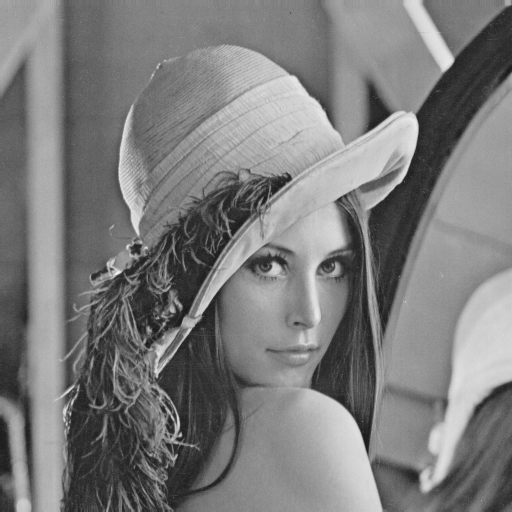
For a Python script, put image_utils.py in the same folder and begin with the imports in Listing 6. The imports make the complete loading, negative-filter, saving and display functions available to your script. In a notebook, keep image_utils.py in the notebook’s working directory and run the imports before making the calls. You can also run the complete supplied helper listing and negative-filter listing in notebook cells before calling their functions.
The examples use Pillow inside the supplied helpers to open, convert and save images. For optional local work, install Pillow in the Python environment used by your notebook or script, as shown in Listing 5. The CodeGrade checks only need your matrix functions.
Then, to get the negative of an image, call the functions as shown in Listing 6. Loading produces the input matrix, negative_filter returns the inverted matrix, and the last two calls save and display it. The result appears in Figure 2.
Listing 6 shows applying the supplied negative filter to an image file.
You can test the functions in the following ways:
- In a Jupyter notebook, run the imports and demonstration calls in a cell. To display the returned matrix as an image in the notebook, import
get_image_from_matrixand evaluateget_image_from_matrix(inverted)at the end of a cell. Evaluatinginvertedalone shows the list of rows. - In a Python script, use
show_image_from_matrix(inverted)to open the image viewer. Listing 7 shows a complete runnable script. Keep the suppliedimage_utils.pyandimgfolder beside this script and run it with that folder as the working directory. - Save the image with
save_image_from_matrix(inverted, 'img/lena_grayscale_negative.bmp'). The function receives the matrix directly and writes the image file. Open the saved file to inspect it. The matrix is still available for numerical checks, so displaying or saving it does not replace returning it.
from image_utils import (
    get_image_as_matrix,
    negative_filter,
    save_image_from_matrix,
    show_image_from_matrix,
)


def main():
    input_image_path = 'img/lena_grayscale.bmp'
    rows = get_image_as_matrix(input_image_path)
    inverted = negative_filter(rows)
    save_image_from_matrix(inverted, 'img/lena_grayscale_negative.bmp')
    show_image_from_matrix(inverted)


if __name__ == '__main__':
main()round(value)returns the nearest integer, choosing the even integer at an exact halfway point. For example,round(2.5)is2.int(value)removes the fractional part of a positive value, soint(2.9)is2. Integer division5 // 2is2. Follow each task’s stated conversion rule.abs(value)returns the magnitude, soabs(-10)is10.minandmaxselect the smallest and largest arguments. For example,min(255, max(0, 300))is255, whilemin(255, max(0, -10))is0.row.copy()creates a separate list with the same row values. Changing the copy does not change the original row of integer pixels.len(rows)counts rows.range(1, height - 1)supplies the interior row positions; whenheightis4, those positions are1and2.
Your tasks
Implement the eight functions below. Work independently without external help, including help from other people or generative AI. All instructions, examples and input images are supplied in this assignment.
The NumPy-style docstring in each task file states the inputs, returned matrix, boundary rules and numerical examples. Keep the filenames and function signatures. You may add your own helper functions.
Question 1. Image manipulation functions
Using the supplied functions to read grayscale images as matrices, implement the image manipulation functions below. Every input matrix is nonempty and rectangular. Return a new matrix and leave the input unchanged. Use only the listed direction labels. Crop coordinates, width and height are integers; width and height are positive and the rectangle lies within the image.
| Part | File and function | Required operation |
|---|---|---|
| 1a | rotate_image.py / rotate_image |
Rotate image |
| 1b | flip_image.py / flip_image |
Flip image |
| 1c | resize_image.py / resize_image |
Resize image |
| 1d | crop_image.py / crop_image |
Crop image |
| 1e | zoom_image.py / zoom_image |
Zoom image |
1a. Rotate image
This function rotates the image 90 degrees in the specified direction, either clockwise or counterclockwise, and returns the rotated matrix. A 90-degree rotation exchanges the image width and height.
Complete rotate_image.py. Its docstring gives the inputs, result and examples.
Listing 8 contains the starter for rotate_image.py.
rotate_image.py
def rotate_image(
    rows: list[list[int]],
    direction: str,
) -> list[list[int]]:
    """Rotate the grayscale image 90 degrees clockwise or counterclockwise.

    Parameters
    ----------
    rows : list[list[int]]
        Nonempty rectangular matrix of grayscale integers from 0 to 255.
        rows[y][x] selects row y and column x, starting at 0 in the
        top-left corner. Every row contains at least one pixel.
    direction : str
        Either 'clockwise' or 'counterclockwise'.

    Returns
    -------
    list[list[int]]
        A new matrix with as many rows as the input has columns, and
        as many columns as the input has rows.

        Leave rows unchanged. Create a separate list for every output
        row, including unchanged rows. Inputs satisfy the stated ranges;
        invalid-input handling is not required.

    Examples
    --------
    >>> rows = [[10, 20, 30], [40, 50, 60]]
    >>> rotate_image(rows, 'clockwise')
    [[40, 10], [50, 20], [60, 30]]
    >>> rotate_image(rows, 'counterclockwise')
    [[30, 60], [20, 50], [10, 40]]
    """
    pass
1b. Flip image
This function flips the image in the specified direction, either horizontal or vertical, and returns the flipped matrix. A horizontal flip reverses left and right; a vertical flip reverses top and bottom. Both keep the original width and height.
Complete flip_image.py. Its docstring gives the inputs, result and examples.
Listing 9 contains the starter for flip_image.py.
flip_image.py
def flip_image(
    rows: list[list[int]],
    direction: str,
) -> list[list[int]]:
    """Flip the grayscale image horizontally or vertically.

    Parameters
    ----------
    rows : list[list[int]]
        Nonempty rectangular matrix of grayscale integers from 0 to 255.
        rows[y][x] selects row y and column x, starting at 0 in the
        top-left corner. Every row contains at least one pixel.
    direction : str
        'horizontal' reverses the columns in each row (left and right).
        'vertical' reverses the row order (top and bottom).

    Returns
    -------
    list[list[int]]
        A new matrix with the input dimensions and mirrored pixels.

        Leave rows unchanged. Create a separate list for every output
        row, including unchanged rows. Inputs satisfy the stated ranges;
        invalid-input handling is not required.

    Examples
    --------
    >>> rows = [[10, 20, 30], [40, 50, 60]]
    >>> flip_image(rows, 'horizontal')
    [[30, 20, 10], [60, 50, 40]]
    >>> flip_image(rows, 'vertical')
    [[40, 50, 60], [10, 20, 30]]
    """
    pass
1c. Resize image
This function resizes the image by the specified scale factor and returns the resized matrix. A factor above 1 enlarges the image; a factor below 1 reduces it.
When the new pixel positions fall between original positions, an interpolation rule specifies which values to use. Here, use the exact sampling rule in the docstring: select one existing pixel without averaging. The docstring states the output dimensions, integer conversion and source position for every output pixel. Use a positive, finite scale and keep at least one row and one column. Check the dimensions and pixel values against that rule, including scales below 1.
Complete resize_image.py. Its docstring gives the inputs, result and examples.
Listing 10 contains the starter for resize_image.py.
resize_image.py
def resize_image(
    rows: list[list[int]],
    scale: float,
) -> list[list[int]]:
    """Resize the grayscale image by the specified scale factor.

    Parameters
    ----------
    rows : list[list[int]]
        Nonempty rectangular matrix of grayscale integers from 0 to 255.
        rows[y][x] selects row y and column x, starting at 0 in the
        top-left corner. Every row contains at least one pixel.
    scale : float
        A positive finite multiplier. Values above 1 enlarge the image;
        values below 1 reduce it. A value of 1 preserves every pixel.

    Returns
    -------
    list[list[int]]
        A new matrix. For input width W and height H, it contains
        max(1, int(H * scale)) rows and max(1, int(W * scale)) columns.
        Output column x and row y copy input column int(x / scale) and
        row int(y / scale), capped at W - 1 and H - 1. This sampling rule
        selects one existing pixel without averaging.
        int() discards a positive fractional part.

        Leave rows unchanged. Create a separate list for every output
        row, including unchanged rows. Inputs satisfy the stated ranges;
        invalid-input handling is not required.

    Examples
    --------
    >>> rows = [[10, 20, 30], [40, 50, 60]]
    >>> result = resize_image(rows, 2)
    >>> len(result), len(result[0])
    (4, 6)
    >>> result[0], result[1]
    ([10, 10, 20, 20, 30, 30], [10, 10, 20, 20, 30, 30])
    >>> result[2], result[3]
    ([40, 40, 50, 50, 60, 60], [40, 40, 50, 50, 60, 60])
    >>> resize_image(rows, 0.5)
    [[10]]
    """
    pass
1d. Crop image
This function keeps a rectangular part of the image, starting at column x and row y, with the specified width and height. It returns the cropped matrix. Treat x as the column and y as the row, and choose a rectangle entirely within the input image.
Complete crop_image.py. Its docstring gives the inputs, result and examples.
Listing 11 contains the starter for crop_image.py.
crop_image.py
def crop_image(
    rows: list[list[int]],
    x: int,
    y: int,
    width: int,
    height: int,
) -> list[list[int]]:
    """Crop from column x and row y, with the specified width and height.

    Parameters
    ----------
    rows : list[list[int]]
        Nonempty rectangular matrix of grayscale integers from 0 to 255.
        rows[y][x] selects row y and column x, starting at 0 in the
        top-left corner. Every row contains at least one pixel.
    x : int
        First input column to keep, starting at 0 on the left.
    y : int
        First input row to keep, starting at 0 at the top.
    width : int
        Positive number of columns to keep.
    height : int
        Positive number of rows to keep. The entire requested rectangle
        lies inside the input image; x and y are nonnegative.

    Returns
    -------
    list[list[int]]
        A new matrix with height rows and width columns. Keep columns x through
        x + width - 1 and rows y through y + height - 1 in their original
        order.

        Leave rows unchanged. Create a separate list for every output
        row, including unchanged rows. Inputs satisfy the stated ranges;
        invalid-input handling is not required.

    Examples
    --------
    >>> rows = [[10, 20, 30], [40, 50, 60]]
    >>> crop_image(rows, 1, 0, 2, 2)
    [[20, 30], [50, 60]]
    >>> crop_image(rows, 2, 1, 1, 1)
    [[60]]
    """
    pass
1e. Zoom image
This function zooms into or out of the image by the specified factor and returns a matrix with the original width and height.
Zooming changes which part of the image fills the fixed-size output. For a factor above 1, use the centered input rectangle stated in the docstring. For a factor below 1, place the smaller image on a black canvas. The docstring gives the sampling, centering and integer rules, including where an odd unused margin goes. Use a positive, finite factor and check both the dimensions and pixel values.
Complete zoom_image.py. Its docstring gives the inputs, result and examples.
Listing 12 contains the starter for zoom_image.py.
zoom_image.py
def zoom_image(
    rows: list[list[int]],
    factor: float,
) -> list[list[int]]:
    """Zoom the grayscale image in or out on a fixed-size canvas.

    Parameters
    ----------
    rows : list[list[int]]
        Nonempty rectangular matrix of grayscale integers from 0 to 255.
        rows[y][x] selects row y and column x, starting at 0 in the
        top-left corner. Every row contains at least one pixel.
    factor : float
        Positive finite factor. Above 1 zooms in, below 1 zooms out,
        and 1 preserves every pixel.

    Returns
    -------
    list[list[int]]
        A new matrix with the input width W and height H.

        Leave rows unchanged. Create a separate list for every output
        row, including unchanged rows. Inputs satisfy the stated ranges;
        invalid-input handling is not required.

    Notes
    -----
    For factor >= 1, keep a centered rectangle of width
    cw = max(1, int(W / factor)) and height ch = max(1, int(H / factor)).
    Its left column is (W - cw) // 2 and top row is (H - ch) // 2.
    Output column x and row y select column int(x * cw / W) and row
    int(y * ch / H) within that rectangle. Use the original pixels.

    For factor < 1, shrink to nw = max(1, int(W * factor)) columns and
    nh = max(1, int(H * factor)) rows using the resize sampling rule:
    small column x and row y select input int(x / factor), int(y / factor),
    capped at the last column and row. Place this image on a black canvas
    at column (W - nw) // 2 and row (H - nh) // 2. Black pixels have value 0.
    With an odd unused margin, the extra pixel is at the right or bottom.
    int() discards a positive fractional part; // is integer division.

    Examples
    --------
    >>> rows = [[10, 20, 30], [40, 50, 60]]
    >>> zoom_image(rows, 2)
    [[20, 20, 20], [20, 20, 20]]
    >>> zoom_image(rows, 0.5)
    [[0, 10, 0], [0, 0, 0]]
    """
    pass
Question 2. Filters
| Part | File and function | Required operation |
|---|---|---|
| 2a | apply_blur_filter.py / apply_blur_filter |
Box blur |
| 2b | apply_edge_detection_filter.py / apply_edge_detection_filter |
Edge detection |
| 2c | apply_sharpen_filter.py / apply_sharpen_filter |
Sharpen image |
In image processing, filters are used to enhance or modify the appearance of an image. Applying a filter calculates a new value for each pixel from the values of neighboring pixels. In this exercise, you will implement three filters: the box blur filter, the edge detection filter and the sharpen filter.
A kernel is a small matrix of weights. To calculate an output value, multiply each kernel weight by the corresponding input pixel and add the products. Use the weights in the displayed order, without reversing them. This operation is called correlation.
For every filter, keep border pixels unchanged and calculate interior pixels from the original input. Return a new matrix with separate output rows.
2a. Box blur
The box blur filter is used to reduce noise and detail in an image. It works by averaging the pixel values in the neighborhood of each pixel. The formula for the blurred value of a pixel is the average of the pixel values in a 3x3 neighborhood centered around the pixel. For a pixel at column x and row y in the matrix img_matrix, add the nine neighborhood values and divide by 9.
Listing 13 shows the box blur calculation for one interior pixel.
Implement apply_blur_filter(rows: list[list[int]]) -> list[list[int]] to return a new blurred matrix. Follow its docstring for borders and integer conversion.
Round the neighborhood average with round(). The docstring gives numerical examples and the rules for images smaller than the kernel.
Listing 14 contains the starter for apply_blur_filter.py.
apply_blur_filter.py
def apply_blur_filter(
    rows: list[list[int]],
) -> list[list[int]]:
    """Apply the three-by-three box blur kernel.

    Parameters
    ----------
    rows : list[list[int]]
        Nonempty rectangular matrix of grayscale integers from 0 to 255.
        rows[y][x] selects row y and column x, starting at 0 in the
        top-left corner. Every row contains at least one pixel.

    Returns
    -------
    list[list[int]]
        A new matrix with the input dimensions.
        Copy the first and last rows and columns unchanged.
        If either dimension is below 3, copy the entire image unchanged.

        Leave rows unchanged. Create a separate list for every output
        row, including unchanged rows. Inputs satisfy the stated ranges;
        invalid-input handling is not required.

    Notes
    -----
    Use kernel [[1, 1, 1], [1, 1, 1], [1, 1, 1]].
    For each interior pixel, multiply the nine ORIGINAL neighborhood values
    by the matching kernel entries and add the products. Use the entries
    in the order displayed, without reversing rows or columns. Store the
    answer in a separate output matrix so later pixels use original data.
    Divide the sum by 9, then use round() to obtain an integer.
    round() chooses the nearest integer, with exact halfway values going
    to the even integer. For example, round(10.5) is 10 and round(11.5) is 12.

    Examples
    --------
    >>> rows = [[10, 20, 30], [40, 45, 60], [70, 80, 90]]
    >>> apply_blur_filter(rows)
    [[10, 20, 30], [40, 49, 60], [70, 80, 90]]
    """
    pass
2b. Edge detection
The edge detection filter is used to highlight the edges in an image. It works by detecting sharp changes in intensity between neighboring pixels. One common edge detection filter is the Sobel filter, which calculates the gradient of the image intensity at each pixel. The gradient describes how quickly brightness changes with position. The directional Sobel kernel below measures changes across columns.
For example, consider the 5x5 image matrix in Figure 3. The value 0 is black, and 255 is white.
\[ \begin{bmatrix} 0 & 255 & 255 & 255 & 0 \\ 255 & 0 & 255 & 0 & 255 \\ 255 & 255 & 0 & 255 & 255 \\ 255 & 0 & 255 & 0 & 255 \\ 0 & 255 & 255 & 255 & 0 \\ \end{bmatrix} \]
Now, consider the 3x3 Sobel kernel in Figure 4. It detects changes in brightness across columns.
\[ \begin{bmatrix} -1 & 0 & 1 \\ -2 & 0 & 2 \\ -1 & 0 & 1 \\ \end{bmatrix} \]
To apply the kernel to the image matrix, we slide the kernel over the image matrix, multiply the kernel values by the corresponding pixel values, and sum the products. Store the result in a separate output matrix so that calculating one pixel does not change the neighbors used for another. Use the weights in the displayed order, without reversing them. This is the correlation convention stated above. For example, consider the pixel at position \(p_{x,y} = p_{2,1} = 255\) in the image matrix Figure 3 (consider \(x\) as the column and \(y\) as the row, both starting from 0). The 3x3 neighborhood around this pixel is shown in Figure 5 (a), and the pixel values are shown in Figure 5 (b).
\[ \begin{bmatrix} p_{x-1,y-1} & p_{x,y-1} & p_{x+1,y-1} \\ p_{x-1,y} & p_{x,y} & p_{x+1,y} \\ p_{x-1,y+1} & p_{x,y+1} & p_{x+1,y+1} \\ \end{bmatrix} \]
\[ \begin{bmatrix} 255 & 255 & 255 \\ 0 & \color{red}{255} & 0 \\ 255 & 0 & 255 \\ \end{bmatrix} \]
\[ \begin{align*} r_{2,1} = & (-1 \times 255) + (0 \times 255) + (1 \times 255) \\ & + (-2 \times 0) + (0 \times 255) + (2 \times 0) \\ & + (-1 \times 255) + (0 \times 0) + (1 \times 255) \\ r_{2,1} = & -255 + 0 + 255 \\ & +0 + 0 + 0 \\ & -255 + 0 + 255 \\ = & 0 \end{align*} \]
The notation \(p_{x,y}\) means column \(x\), row \(y\); the same input pixel is rows[y][x] in a nested list. Here the center pixel is 255, but its signed Sobel response is 0 because the weighted contributions cancel. Take the absolute response and cap it at 255 before storing the output pixel. Leave border pixels unchanged.
For a pixel at column x and row y, the sum of products is shown in Listing 15.
Implement apply_edge_detection_filter(rows: list[list[int]]) -> list[list[int]] to return a new edge-detected matrix. Follow its docstring for borders and integer conversion.
Listing 16 contains the starter for apply_edge_detection_filter.py.
apply_edge_detection_filter.py
def apply_edge_detection_filter(
    rows: list[list[int]],
) -> list[list[int]]:
    """Apply the three-by-three Sobel kernel to detect intensity changes.

    Parameters
    ----------
    rows : list[list[int]]
        Nonempty rectangular matrix of grayscale integers from 0 to 255.
        rows[y][x] selects row y and column x, starting at 0 in the
        top-left corner. Every row contains at least one pixel.

    Returns
    -------
    list[list[int]]
        A new matrix with the input dimensions.
        Copy the first and last rows and columns unchanged.
        If either dimension is below 3, copy the entire image unchanged.

        Leave rows unchanged. Create a separate list for every output
        row, including unchanged rows. Inputs satisfy the stated ranges;
        invalid-input handling is not required.

    Notes
    -----
    Use kernel [[-1, 0, 1], [-2, 0, 2], [-1, 0, 1]].
    For each interior pixel, multiply the nine ORIGINAL neighborhood values
    by the matching kernel entries and add the products. Use the entries
    in the order displayed, without reversing rows or columns. Store the
    answer in a separate output matrix so later pixels use original data.
    Take the absolute value of the sum and cap it at 255.

    Examples
    --------
    >>> rows = [[10, 20, 30], [40, 45, 60], [70, 80, 90]]
    >>> apply_edge_detection_filter(rows)
    [[10, 20, 30], [40, 80, 60], [70, 80, 90]]
    """
    pass
2c. Sharpen image
The sharpen filter is used to enhance the details in an image. It works by increasing the contrast between neighboring pixels. It applies a sharpening kernel, a 3x3 matrix with values [[0, -1, 0], [-1, 5, -1], [0, -1, 0]]. The sharpened value of a pixel is the sum of the products of the kernel values and the neighboring input values. For the pixel at column x and row y in img_matrix, calculate that sum as follows.
Listing 17 shows the sharpening calculation for one interior pixel.
Implement apply_sharpen_filter(rows: list[list[int]]) -> list[list[int]] to return a new sharpened matrix. Follow its docstring for borders and integer conversion.
Clamp the result to 0 through 255. The docstring gives numerical examples and the exact boundary rules.
Listing 18 contains the starter for apply_sharpen_filter.py.
apply_sharpen_filter.py
def apply_sharpen_filter(
    rows: list[list[int]],
) -> list[list[int]]:
    """Apply the three-by-three sharpening kernel.

    Parameters
    ----------
    rows : list[list[int]]
        Nonempty rectangular matrix of grayscale integers from 0 to 255.
        rows[y][x] selects row y and column x, starting at 0 in the
        top-left corner. Every row contains at least one pixel.

    Returns
    -------
    list[list[int]]
        A new matrix with the input dimensions.
        Copy the first and last rows and columns unchanged.
        If either dimension is below 3, copy the entire image unchanged.

        Leave rows unchanged. Create a separate list for every output
        row, including unchanged rows. Inputs satisfy the stated ranges;
        invalid-input handling is not required.

    Notes
    -----
    Use kernel [[0, -1, 0], [-1, 5, -1], [0, -1, 0]].
    For each interior pixel, multiply the nine ORIGINAL neighborhood values
    by the matching kernel entries and add the products. Use the entries
    in the order displayed, without reversing rows or columns. Store the
    answer in a separate output matrix so later pixels use original data.
    Clamp the sum to 0 through 255: negative becomes 0; above 255 becomes 255.

    Examples
    --------
    >>> rows = [[10, 20, 30], [40, 45, 60], [70, 80, 90]]
    >>> apply_sharpen_filter(rows)
    [[10, 20, 30], [40, 25, 60], [70, 80, 90]]
    """
    pass