2.3 Set up Excel
Install and set up Excel before you start the Step-by-step tutorial. UT students get Excel through Microsoft 365. After installing, learn the ribbon and status bar, then set Excel's display language to English (United States). On a Mac, also read how Excel for Mac differs from Excel for Windows.
2.3.1 Excel installation
Microsoft 365 is available for UT students. You can use these apps online or install them on your computer:
- Word
- Excel
- PowerPoint
- Teams
- Outlook
- OneDrive
Read how to get Microsoft 365, including Excel, on the UT page Microsoft Office 365 for students and employees.
2.3.2 Excel interface and settings
Fine-tuning the interface and the ribbon
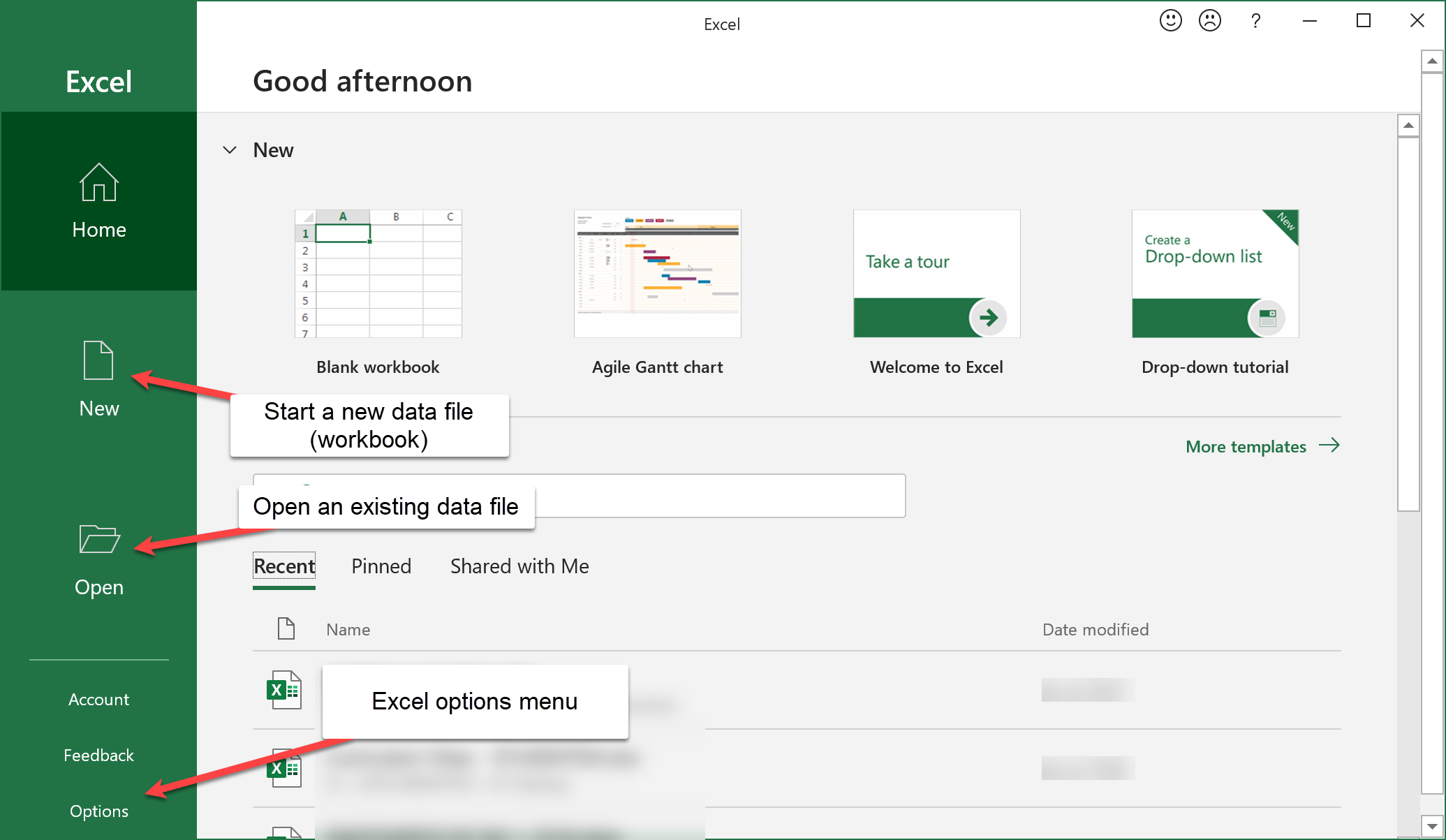
Start Excel via the Windows Start menu (press the Windows logo key or click the Start button, and type excel to quickly find the Excel icon). After Excel has started, you see the following window, which allows you to create a new Excel data file (which is called a workbook), open an existing one, or open the Excel options menu (Figure 1).
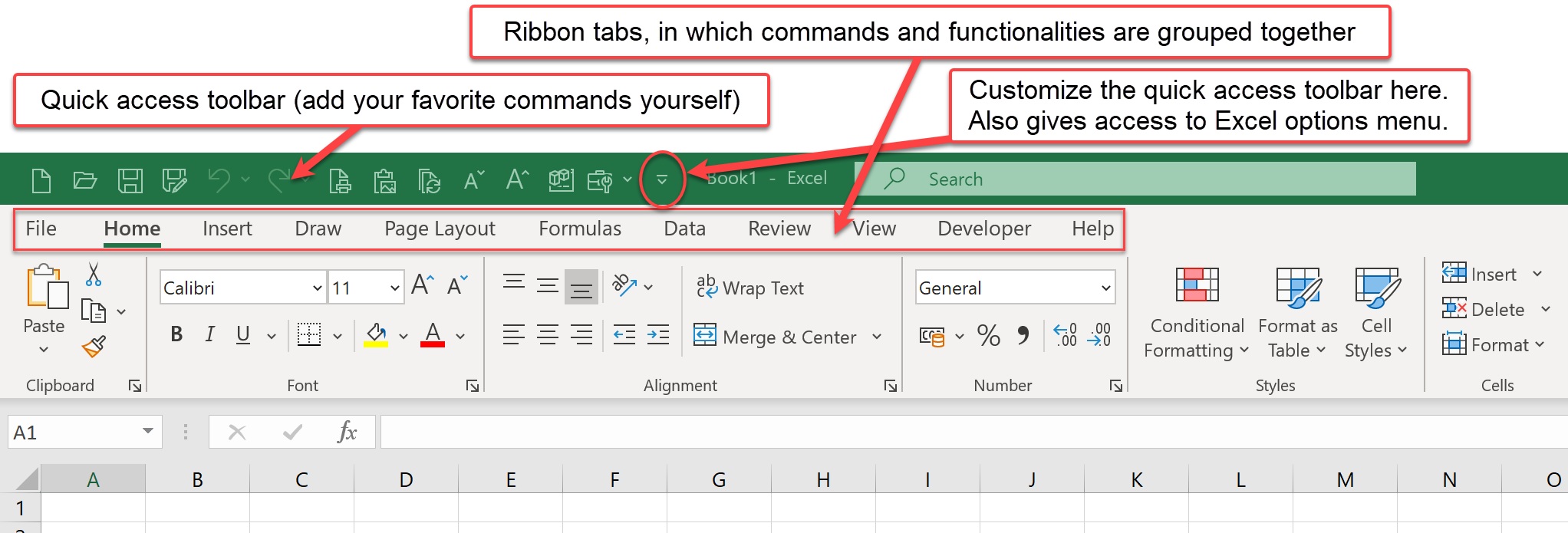
Once you have opened a data file, you enter the Excel working environment (Figure 3). Many of Excel's commands are grouped together in tabs. The tabs together form the so-called Ribbon (Figure 2).
You can customize the Ribbon via the Excel options menu. Within the options menu, select Customize Ribbon (Figure 4).
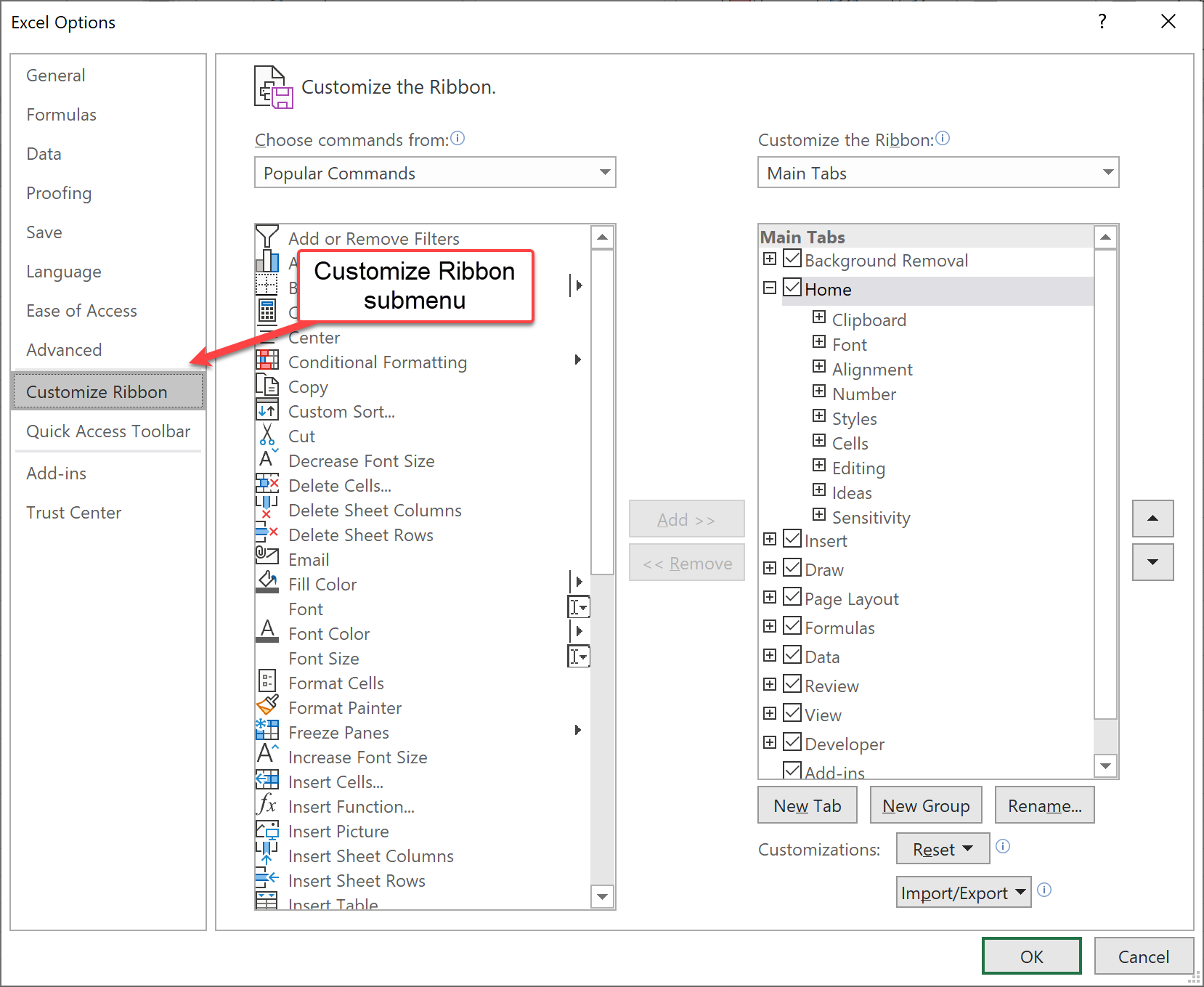
For example, the Developer tab is disabled by default. Enabling it gives access to the Visual Basic for Applications (VBA) programming environment.
Excel has a status bar at the bottom of the screen, which can contain useful information. To illustrate this, put some data in cells A1, A2, and A3 (Figure 5).
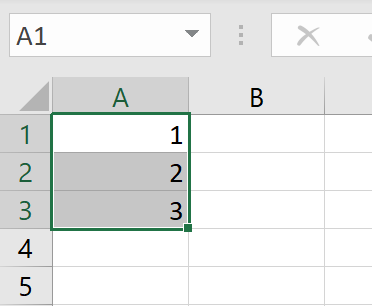
Once you have selected the 3 cells (as in Figure 5), some statistics for these cells will appear in the status bar, like Average, Count (= number of selected cells that contain a value), and Sum (Figure 6).

By right-clicking on these statistics, you can customize the status bar. Make sure that Minimum and Maximum are checked. The status bar will then look like Figure 7.

This is very useful to quickly get some statistics, without actually having to use formulas, by simply selecting the cells.
Language settings
Menu names and function names in Excel differ between languages. This module uses the English names, so set Excel's display language to English (United States). On Windows, open File > Options > Language (Figure 8).
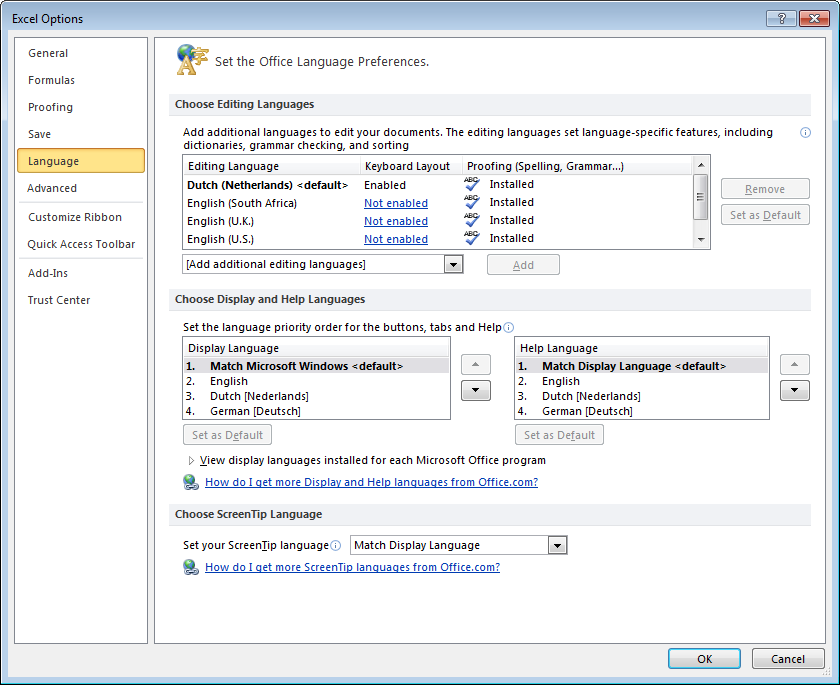
Under Office display language, select English (United States) and then select Set as Preferred. If English (United States) isn't in the list, select Add a Language and follow the instructions. Restart Excel to see the change.
On a Mac, you can set the language for Excel only, and the rest of your Mac keeps its language. Open System Settings > General > Language & Region. Under Applications, select +. Choose Microsoft Excel and English, then select Add. Quit and reopen Excel.
Excel uses the regional settings of your operating system. In some countries, a comma (,) is used as a decimal separator, while in others a dot (.) is used. Similarly, the list separator may be a comma or a semicolon (;). This means that formulas may differ between countries.
Therefore, if a formula is not working, perhaps you have to replace commas by semicolons, or vice versa or use a different decimal separator. Since most online resources use the English notation, consider changing your regional settings to English (United States) to avoid confusion.
Excel on a MacBook (MS Office for Mac)
The most recent versions of Excel for Mac contain largely the same features as Excel for Windows. The differences below may change in future versions, or may already be fixed in your version.
Keyboard shortcuts on PC and Mac are different. For example, for Page up or Page down, you need to press Fn+Up arrow or Fn+Down arrow on a Mac. Some of the shortcuts that work on PC would not work on Mac (for example, Paste only formulas or Paste Link and others).
PivotCharts support fewer chart types on a Mac. To create one, select a cell in your PivotTable. On the Insert tab, choose a column, line, pie, or radar chart. Other chart types don't work with PivotTables.
VBA has a less extensive feature set on Mac, which only becomes a problem when you are a more advanced programmer.
This module assumes Microsoft 365, Excel 2021, or Excel 2024, on Windows or Mac. XLOOKUP and dynamic array functions such as UNIQUE, SORT, and FILTER work in all 3 versions. TEXTSPLIT works only in Microsoft 365 and Excel 2024. Excel 2019 and older versions have none of these functions.