7.3 Virtual environments
You send a Python project to a teammate. The program runs on your computer, but a required package is missing or has a different version on theirs. Running the program depends on both its code and its environment, as Figure 1 illustrates.

A Python program can need packages that are installed separately from Python. A package is a collection of reusable code. A package your program needs is a dependency. Package versions matter because a newer version can behave differently.
7.3.1 Keep each project's packages separate
A virtual environment gives a project its own installed packages. Python creates it using a Python version already installed on the computer. The Python interpreter is the program that executes Python code. Each environment has an interpreter entry point that uses that environment's installed packages.
Suppose a data-analysis project needs one version of NumPy, a package for numerical calculations. An optimization project needs another version. Figure 2 shows how separate environments can keep both versions. Start with the installed Python at the top, then follow the arrows to the two project environments. The package boxes show example contents, not commands to run.
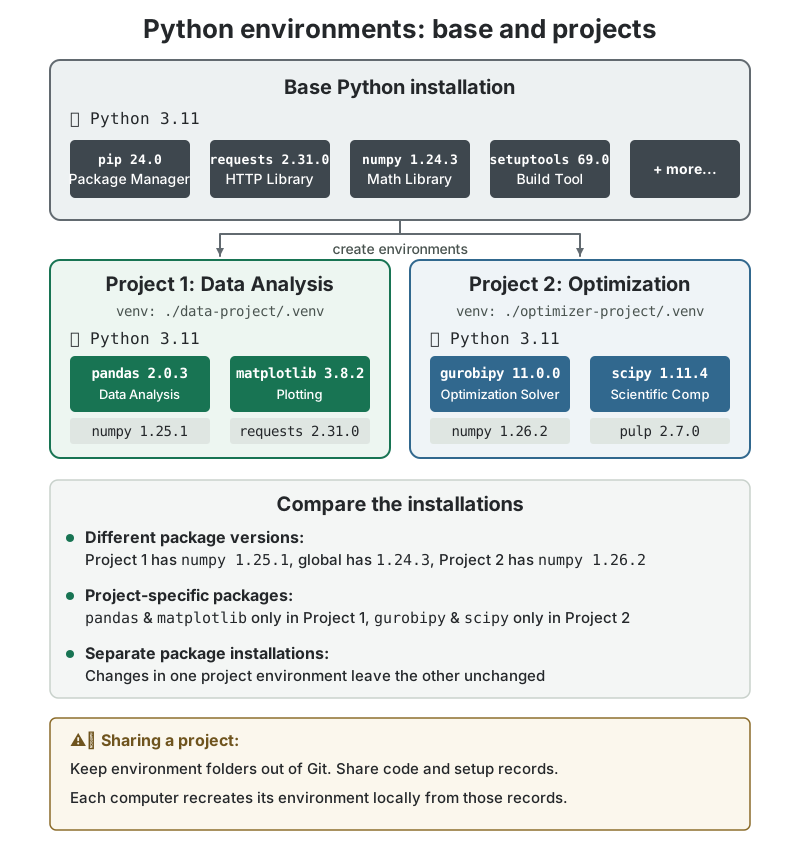
Table 1 follows the NumPy package in the two environments. Installing a new version in the optimization environment leaves the data-analysis environment unchanged.
| Project | Environment folder | Installed NumPy version |
|---|---|---|
| Data analysis | data-project/.venv |
1.25.1 |
| Optimization | optimizer-project/.venv |
1.26.2 |
Keep your program and input files outside the environment folder. In Listing 1, indentation means that a file or folder is inside the folder above it. The package labels describe installed versions; they are not literal directory names. Windows uses Scripts for the interpreter; macOS and Linux use bin.
7.3.2 Create and use an environment
The following walkthrough prepares a small project for pytest, the package used to run tests in 7.4 Testing code. You will create an environment, install the package, and save a record that can recreate its installation. An internet connection is needed to download packages.
Python's venv tool creates environments. The package installer pip installs packages into them. In a command such as python -m pip, -m tells Python to run the named module. Using python -m pip makes the installer belong to the Python you selected.
1. Open a project folder and check Python
Create a new, empty folder named environment-demo in your file manager. Open that folder in VS Code, then choose Terminal > New Terminal. The terminal should start inside environment-demo. Enter the commands below in the terminal, not in a Python prompt showing >>>. Use only the tab for your operating system and shell.
The version command should print Python followed by a version number. The path identifies the program that will create your environment. If Python is unavailable or Windows opens a store page, return to the Python installation instructions. Keep the reported Python version for your setup record.
2. Create and select the environment
Create the environment once, then activate it in the current terminal. Activation makes the command python refer to the environment's Python in that terminal.
You should now see a .venv folder inside environment-demo. Your terminal prompt usually begins with (.venv). The creation command may finish without printing anything.
If creation fails because venv is missing, use the installation guidance in 7.3.6 Other environment choices, then repeat the creation command before continuing.
Check the actual selection with Listing 8. sys.executable is the path of the running Python. The final comparison checks whether it is running in a virtual environment.
Both paths should contain your project's .venv folder, and the last command should print True. Check these results before installing packages.
You can use the environment's Python directly without changing the execution policy. Listing 9 checks its package installer.
For commands that use an already-created environment, substitute .\.venv\Scripts\python.exe for python. For example, installation becomes .\.venv\Scripts\python.exe -m pip install pytest. Keep the base-Python checks and creation command unchanged when starting in a new folder. After creating that folder's .venv, use its direct interpreter if activation is blocked again. On macOS or Linux, the corresponding interpreter path is .venv/bin/python. Activation is a convenience, not a requirement for using an environment.
3. Install and check a package
Use Listing 10 in the selected environment. install downloads and installs pytest and any packages it needs. show reports its version and installation location.
The Location reported by pip show should be inside .venv. The final command should print pytest followed by its installed version. The exact version can change as new releases become available. You have now checked that this environment's Python can use the package.
When you return to this project in a new terminal, activate its existing .venv and repeat the interpreter check. You do not need to create the environment or install the package again each time.
7.3.3 Record the setup
Save the Python version and the package versions separately. Create a text file named README.txt beside .venv. Record the Python version reported earlier and the command python -m pytest --version used to check this example. For a project with a program, also record how to run it and which input files it needs.
Save the installed package versions in a second text file named requirements.txt. The freeze command prints the installed package requirements; the rest of each command saves that text to a file. Run it from the project's environment.
Listing 11 saves UTF-8 text and displays the file so you can inspect it.
Listing 12 saves the requirements. Open requirements.txt in your editor afterward.
Find the line beginning with pytest==. The number after == should match the version you just checked. Other lines record packages that pytest needs. pip freeze records what is installed, including unused packages if you installed any, and normally omits package-installation tools. It does not determine which packages your code actually needs.
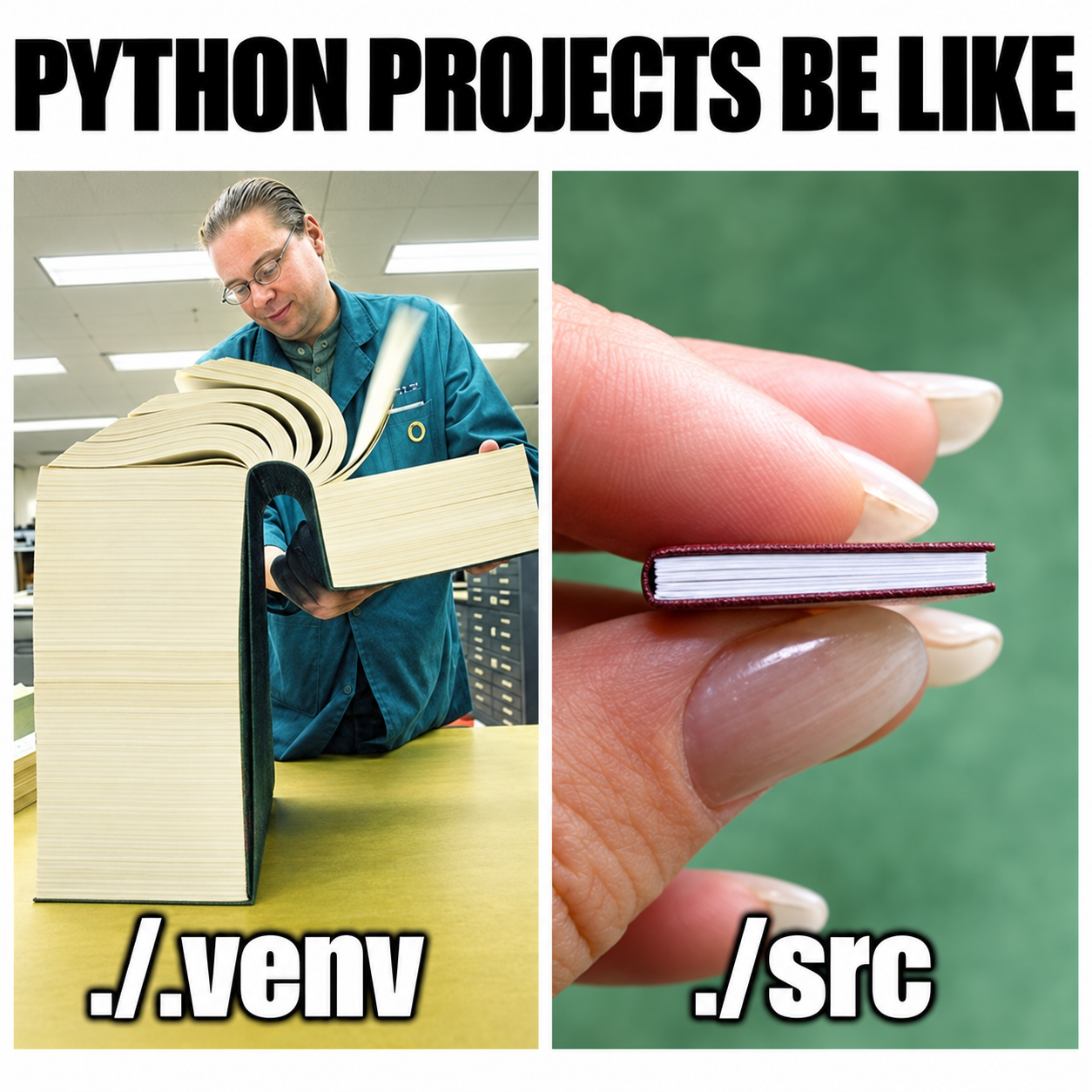
requirements.txt contains names and versions; the installed copies are inside .venv. Figure 3 illustrates how a small program can use many installed packages. In the image, src means the folder containing the program's source code. The book sizes are an illustration, not a measured size comparison.
7.3.4 Recreate the environment
The .venv folder can contain references to locations on the original computer. Copying it can leave references that fail in a new location. The Python documentation therefore recommends recreating environments where they will run.
You can practice recreation on the same computer. In your file manager, create another empty folder named environment-demo-copy. Copy README.txt and requirements.txt into it, leaving .venv behind. For a real project, copy its program, tests, input files, and required configuration too.
- Open
environment-demo-copyin a separate VS Code window with File > New Window, then File > Open Folder. Open a new terminal there. Check the installed Python againstREADME.txtusing the commands from step 1 above. - Create and select a new
.venvin this folder using the commands from step 2. Check that the executable path containsenvironment-demo-copy/.venv(with backslashes on Windows). - Run Listing 13 in this new environment.
The -r option tells pip to read the package requirements from the named file. pip check should report No broken requirements found. The final command should report the same pytest version as in the original environment. Your two project folders now have separate local installations created from the same record.
On another computer, follow the same sequence after installing the recorded Python version. The packages must be available for that Python version and operating system. Leave other projects' environments unchanged.
The requirements file does not record Python itself, system libraries, or every computer setting. A successful pip check checks package dependencies; it does not prove that your program is correct. Run the project's tests as well when they are available. Testing program behavior is developed in 7.4 Testing code.
When you finish working in an activated environment, enter deactivate to leave it. The folder and installed packages remain available. Keep .venv out of Git, the version-control system that records project changes. Its ignore rules are explained in Keep local environments and credentials out of Git. If you sync a project through cloud storage, each computer still needs its own locally recreated environment.
7.3.5 Select the environment in VS Code
Terminal activation affects that terminal. The editor and a notebook can use different Python interpreters. Creating .venv alone does not select it in every tool.
For a Python script, open the Command Palette with Ctrl+Shift+P (Windows or Linux) or Cmd+Shift+P (macOS). Choose Python: Select Interpreter, then your project's .venv. If necessary, choose Enter interpreter path... and browse to .venv\Scripts\python.exe on Windows or .venv/bin/python on macOS or Linux. To check which Python runs the script, add the Python statements import sys and print(sys.executable) on separate lines, then run it from the editor. The printed path should belong to your project's .venv.
A notebook runs its cells through a kernel, the process that executes the code. If you use notebooks, select the kernel separately. Open the notebook, select its kernel name at the top right, choose Python Environments if shown, and select your project's .venv. Figure 4 shows the selection. Folder names in the recording may differ from yours.
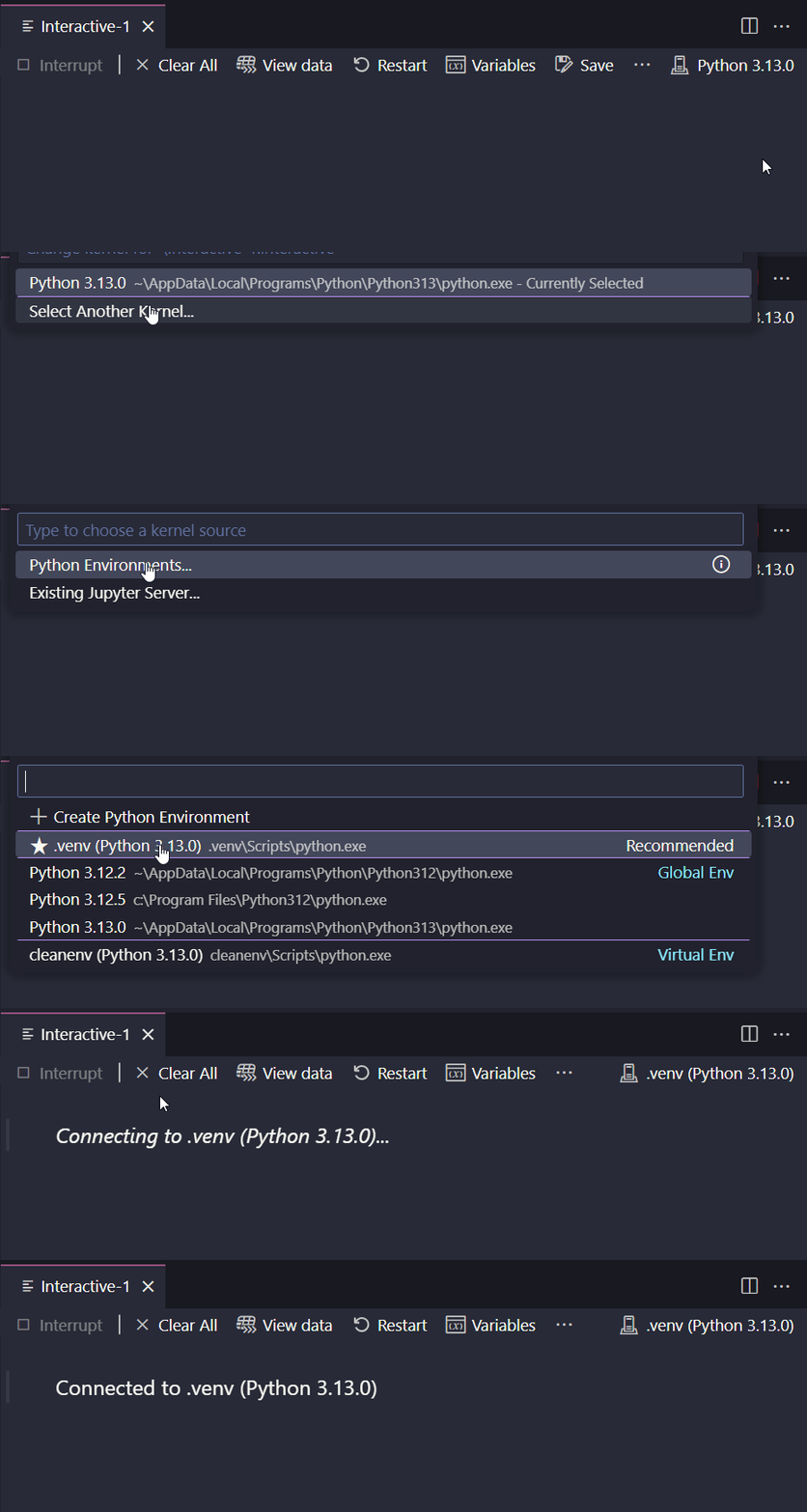
If VS Code asks for ipykernel, activate the project's environment in a terminal and install that notebook-support package with python -m pip install ipykernel. If activation is blocked, use the environment's direct interpreter as explained earlier. Restart the kernel after changing packages. Run import sys; print(sys.executable) in a notebook cell and confirm that its path belongs to your project. Update requirements.txt if the notebook now needs this extra package.
7.3.6 Other environment choices
The default .venv setup above is sufficient for the walkthrough. These alternatives explain options you may encounter in an existing project.
On Debian-based Linux systems, a missing venv component can be installed with Listing 14. Windows Python normally includes it.
If the Windows py launcher and Python 3.12 are installed, Listing 15 chooses that version explicitly. This is an alternative creation command, not an extra step to run on the existing tutorial environment.
An environment created with Listing 16 can also access the base Python installation's packages. Use the default isolated creation command for this walkthrough.
.venv is a conventional name; names such as venv, env, or .venv-check also work. A project can have more than one environment, for example a development environment with debugging tools and a testing environment matching a production setup. Production is the setting where the program is used for its intended work. Separate environments allow different package sets, but consistency still requires matching the relevant versions and configuration and checking the program's behavior.
7.3.7 Exercises
7.3.Q1 Recreate a project environment
You want to run a Python project on another computer. You have copied the program, its input data, and these two files:
README.txt: the Python version and instructions for running the program.requirements.txt: the required package names and versions.
The required Python version is already installed. The original computer also has a .venv/ folder containing the project's installed packages.
Answer in words. No commands are required.
- Why should you create a virtual environment on the other computer instead of copying
.venv/? How would you userequirements.txtwhen setting it up? - Your project works only with version 2 of a package. An existing project on the other computer works only with version 1. Its environment must stay unchanged. How would you use virtual environments so both projects can run? State which package version belongs in each environment.