7.5 Version control systems
A version control system (VCS) records selected versions of project files and the changes between them. The record lets you inspect earlier code, recover a saved version, and combine contributions from collaborators.
7.5.1 Why use a VCS?
Here are some scenarios where a VCS can be useful:
Tracking changes
You are working on a project with your group members. You want to add some new features to the code, but you are not sure if the changes will work.
Then, you create a copy of the code and make the changes (e.g., code_v2.py, code_final.py, code_final_final.py, etc.). Your group members also make changes to the code, and now you have multiple copies of the code with different changes. How do you keep track of all these changes?
With a VCS, you can track changes in your code, see who made the changes, when the changes were made, and why the changes were made.
If you don't use a VCS, you may end up with multiple copies of the code with different changes, which can quickly become messy and error-prone.
Collaborating with others
You are working on a project with your group members. You want to share your progress with your group members and get feedback on your code. Then you:
- Send an email with the code attached, and your group members make changes to the code and send it back to you. Now, you have multiple copies of the code with different changes. How do you merge these changes?
- Use a cloud storage service like Google Drive or Dropbox to share the code with your group members. You all work on the same copy of the code, and suddenly, the file gets corrupted. How do you recover the previous version of the code?
- Send the code via a messaging app like WhatsApp or Slack. Your colleagues make changes to the code, and now you have multiple copies of the code with different changes. How do you keep track of all these changes?
With Git, each collaborator keeps a local copy of the project and shares committed changes through a remote repository. You can inspect who changed the code, when, and why.
You can also recover previous versions, resolve conflicts, and merge changes made by different group members.
7.5.2 How does a VCS work?
Git is a version-control system that records selected versions of project files. A repository stores the project's saved history. The staging area holds the snapshot of tracked files prepared for the next commit. A commit saves that snapshot, together with an author and a message describing the change. Saving a file in your editor changes your working files; making a commit adds a saved version to Git's history.
You can inspect earlier commits, recover a saved version, and combine changes made by collaborators.
Neo is a character from the science-fiction film The Matrix. Here, he is a learner practicing martial arts. We represent his skills as parts of a project and save his progress as commits.
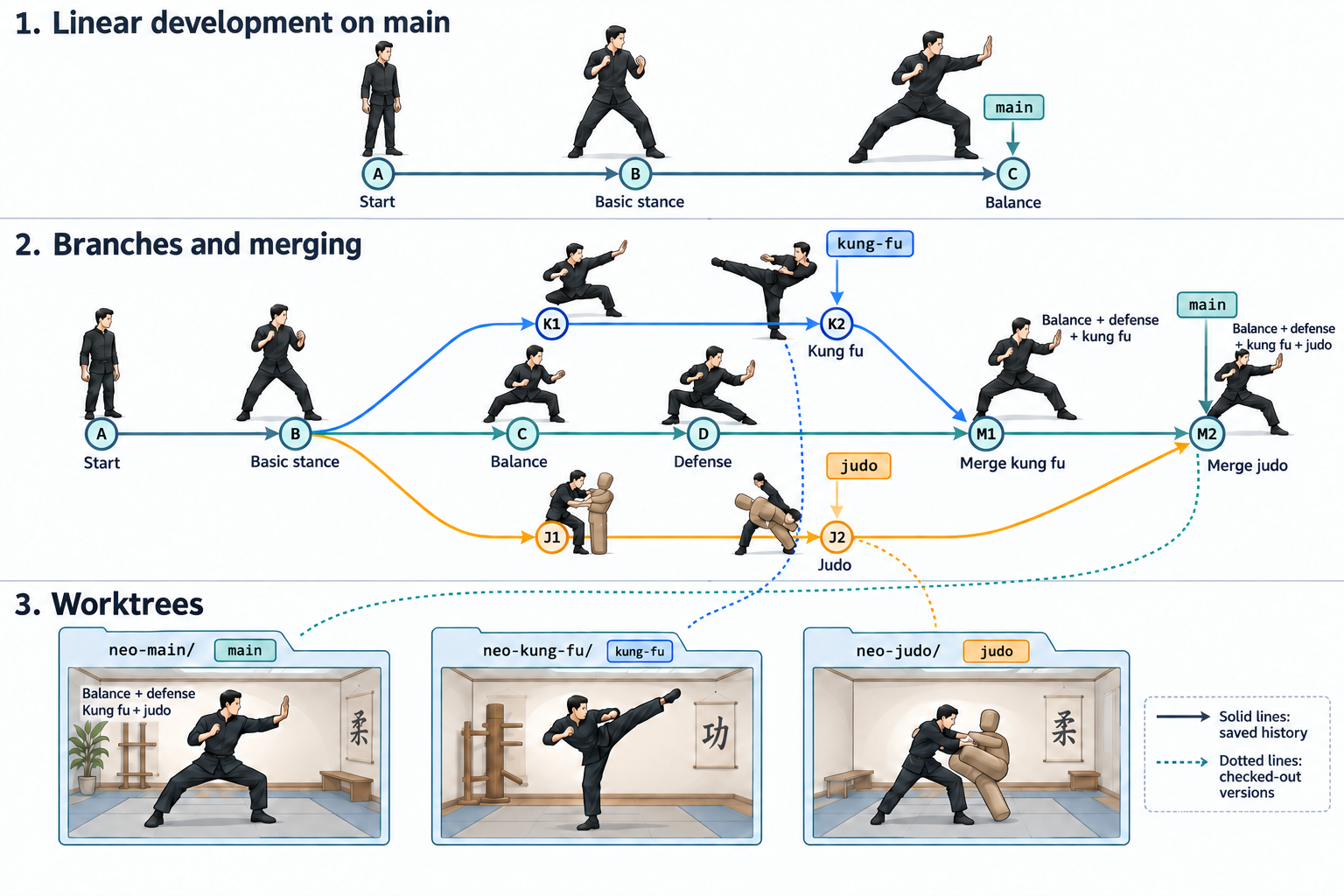
Figure 1 uses Neo's martial arts training to illustrate how those versions develop. Each drawing of Neo stands for a saved version of the project. Read the solid connections from left to right, toward later commits. The dotted connections show which saved versions are open in separate working folders. Use the figure's "View full page" button to inspect its labels.
Linear development on main
Development is linear when each new commit follows the previous one along a single line of work. In the top panel of Figure 1, Neo begins at A, learns a basic stance at B, and improves his balance at C. Each version includes his progress so far. The earlier versions remain in the history.
In Git, a branch is a name that points to a commit. The name moves forward when you make another commit on that branch. Teams commonly call their main branch main. In the top panel, main points to C. If you commit another change on main, its label moves to the new commit.
The name main has no special technical privileges. The team decides how to use it. The Git explanation of branches describes how branch names point to saved commits.
Branches and merging
Create a branch when you want to develop a change separately. The new branch initially points to an existing commit and shares its earlier history. Later commits on that branch can record changes without advancing the other branch.
In the middle panel of Figure 1, both kung-fu and judo start at B. One line develops kung fu through K1 and K2; the other develops judo through J1 and J2. Main also progresses. C adds balance, and D adds defense. The martial arts branches develop independently of main. Main's later changes reach those branches only when you deliberately bring them in.
A merge combines changes from another branch with the branch you are currently working on. At M1, merging kung-fu into main combines the kung fu changes with main's balance and defense improvements. M1 has two parents, D and K2, the earlier commits from which it was formed. At M2, the judo merge adds the changes from J2. Main now contains the combined skills, and both lines of earlier history remain available.
Changes need to be checked together after a merge. If the branches change the same part of a file incompatibly, Git may report a merge conflict. You then decide how to combine the conflicting edits before completing the merge. The Git branching and merging guide explains this process.
Worktrees
A working tree contains the project files you currently have available to edit. Checking out a version makes its files available in that working tree. When you switch branches in one working folder, Git updates the files to the selected branch's version. Commit or set aside unfinished work before switching so you can return to it deliberately.
Git worktrees let you keep different versions open in separate folders. In the bottom panel of Figure 1, neo-main/ has main's combined version, neo-kung-fu/ has the kung fu branch, and neo-judo/ has the judo branch. The folder paths and branch names are separate labels. You can choose a folder name when creating a worktree.
Each worktree has its own working files and staging area. The worktrees share one repository and its commit history. You can keep unfinished kung fu edits in one folder while inspecting main in another. To combine committed changes, merge the branches. Creating another worktree alone adds no merge to the history.
The Git worktree documentation describes how to keep multiple branches checked out at once. For ordinary branch-based work, Git normally keeps a given branch checked out in only one worktree at a time.
7.5.3 Getting started with Git and GitHub
There are many VCSs available, such as Git, Mercurial, and Subversion. In this course, we will use Git, which is one of the most popular VCSs. Git is widely used in the software development industry and is supported by platforms like GitHub, GitLab, and Bitbucket.
Install Git to use the terminal commands below. A GitHub account is needed when you share a repository on GitHub. You can complete the local Git examples without an online account.
GitHub is a platform for hosting and sharing code, and it allows you to collaborate with others on projects. You can create repositories on GitHub to store your code, track changes in your code, and collaborate with others.
Here are some resources to help you get started with Git and GitHub:
- Create a GitHub account. GitHub Free supports shared repositories. Eligible students can apply for GitHub Education benefits.
- Install GitHub Desktop to use its graphical interface. GitHub Desktop provides a graphical interface for Git. To use the terminal commands too, check that
git --versionworks in your terminal.
7.5.4 The basics of Git
Git is a version-control system that records changes to project files. A repository contains the files and their history. A commit records a snapshot of the files Git tracks. Each commit also records its author and a message describing the change.
Git uses a working directory, a staging area, and commit history. The working directory contains the files you edit.
The staging area holds the changes selected for the next commit. The commit history contains saved snapshots. Run these commands inside the project repository.
Start and save a repository
git init: Initialize a new Git repository in the current directory.git clone <repository-url>: Clone a remote Git repository to your local machine.git add <file>: Select the file's current changes for the next commit. Later edits need to be staged again.git commit -m "Commit message": Commit changes in the staging area to the repository.
Inspect files and history
git status: Show the status of the working directory and the staging area.git log: Show the commit history of the repository.git diff: Compare unstaged edits with the staging area.git diff --staged: Compare staged changes with the latest commit.git show <commit>: Inspect a saved commit and its changes.
Work on branches and save unfinished changes
git branch: List, create, or delete branches in the repository. For example,git branch <branch-name>creates a new branch, andgit branch -d <branch-name>deletes a branch.git checkout <branch-name>: Switch to a different branch in the repository. For example,git checkout mainswitches to the main branch.git merge <branch-name>: Merge changes from a different branch into the current branch.git stash: Stash changes in the working directory and the staging area.
Using GitHub Desktop, you can perform many of these Git commands using a graphical user interface, which makes it easier to work with Git repositories.
As your project grows, you may need to use more advanced Git commands and techniques to manage your code effectively. However, these basic Git commands are a good starting point for working with Git repositories.
7.5.5 Worked example: branches and files
A file for Neo's skills
The training history in Figure 1 becomes a Git example when Neo's skills are functions in a file named skills.py. Each function returns a skill name or a list of move names. The small return values let us follow the code changes without implementing a training program.
At A, every function is a stub. A function stub has a name and a body that will be implemented later. Here, raise NotImplementedError deliberately reports that an implementation is missing if you call the function.
At B, basic_stance() has an implementation, as shown in Listing 1. Both martial arts branches start from this saved version.
Read the history in the editor
Download the Neo training repository and extract the ZIP into a new folder. The extracted neo-main folder contains skills.py and its Git history, including both completed merges. Keep its hidden .git folder so Git can read the history. Open neo-main in Visual Studio Code. Open Source Control with Ctrl + Shift + G, then use the Source Control Graph to inspect the commits and branch relationships.
Select a commit to see its changed files. Select skills.py to open its diff, which compares file versions and shows the changed lines. Inspecting a commit leaves your working files unchanged. The Visual Studio Code history guide describes these steps.
Figure 2 shows the same history in an interactive editor view. Select B, D, K2, and J2 to compare their files with the branches in Figure 1. Then select M1 and M2 to inspect the combined versions. File shows the saved file at the selected commit. Diff shows its changes compared with its first parent. For M2, that parent is M1.
Open the interactive history separately.
You can inspect the same repository history in a terminal with Listing 2. --all includes the branch references, --graph draws the connections, --oneline gives one compact entry per commit, and --decorate displays labels such as main. The Git log documentation explains these options.
Listing 3 shows the output from the example repository. A through M2 are teaching labels in the commit messages, matching Figure 1. The short hexadecimal values identify the actual Git commits.
*   f6ef344 (HEAD -> main) M2: Merge judo
|\
| * a66154d (judo) J2: Add a hip throw
| * 09b39db J1: Learn a safe fall
* |   0645b89 M1: Merge kung fu
|\ \
| * | bca0c81 (kung-fu) K2: Add a kick
| * | 6aeb2b9 K1: Learn a punch
| |/
* | 4449ade D: Add defense
* | de98d19 C: Improve balance
|/
* e8f5bf1 B: Implement basic stance
* 4331e6d A: Start training program
Each * marks a commit. The connecting lines show the earlier commits from which it developed. HEAD -> main shows the branch currently checked out in neo-main. The kung-fu and judo labels still point to K2 and J2 after their changes have been merged into main.
Develop the functions separately
Main continues after B. At C, balance() gains an implementation. At D, defend() gains one too. Listing 4 shows those parts of skills.py at D. The basic stance remains implemented, and the two martial arts functions remain stubs.
On kung-fu, K1 replaces the kung_fu() stub with return ["Punch"]. K2 adds a kick, giving the implementation in Listing 5. The changes to balance and defense made on main have not reached this branch.
On judo, J1 replaces the judo() stub with return ["Safe fall"]. J2 adds a hip throw. Listing 6 shows that implementation. The kung fu, balance, and defense changes remain on their separate branches.
Merge the implementations into main
The merge steps in Listing 7 built the final part of this history. Main was at D, the two martial arts branches had reached K2 and J2, and the working files were clean. The example repository now contains both merges. Inspect M1 and M2 in its graph to see their changes.
The first merge produces M1 with parents D and K2. The second produces M2 with parents M1 and J2. In this example, Git combines the edits automatically because the branches change different function bodies.
At M2, skills.py contains all five implementations, as shown in Listing 8. Main's balance and defense improvements remain, and the martial arts implementations are now included.
The merges combine source files. To check the combined version, call each function and compare its result with the expected skill name or move list. A merge that completes still needs program checks.
Open the branches in separate worktrees
The folders in Figure 1 can hold these three versions at the same time. Table 1 shows the implemented functions in each folder. The other functions remain stubs on the two martial arts branches.
| Folder | Checked-out branch | Commit | Implemented functions |
|---|---|---|---|
neo-main/ |
main |
M2 | basic_stance, balance, defend, kung_fu, judo |
neo-kung-fu/ |
kung-fu |
K2 | basic_stance, kung_fu |
neo-judo/ |
judo |
J2 | basic_stance, judo |
Create the two additional folders from a terminal inside the extracted neo-main folder with Listing 9. Each .. moves up to the folder that contains neo-main, so the new folders appear beside it. The branch names select the versions that each folder opens.
Open each folder in a separate Visual Studio Code window to inspect its working files. The folders share the repository history. Viewing B in the graph is an inspection of a saved commit; opening neo-kung-fu/ gives you the working files checked out from the kung fu branch.
7.5.6 The .gitignore file
When working with Git, you may want to exclude certain files and directories from being tracked by Git. For example, you may want to exclude log files, temporary files, huge data files, output files, and other files that are not essential to the project.
You can do this by creating a .gitignore file in the root directory of the Git repository.
The .gitignore file contains a list of files and directories that Git should ignore. You can use wildcards1 and patterns to specify which files and directories to ignore.
For example, you can use *.log to ignore all log files, *.csv to ignore all CSV files, and data/ to ignore the data directory.
In Listing 10, we provide an example of a .gitignore file that excludes log files, temporary files, output files, and other files from being tracked by Git.
Use ! to keep an exception to an earlier pattern. Keep its parent directory traversable too. The example ignores the immediate contents of data/, then keeps data/processed/, so files inside that subdirectory can be tracked.
.gitignore file that excludes log files, temporary files, output files, and other files from being tracked by Git. The file uses wildcards and patterns to specify which files and directories to ignore.
# Ignore log files
*.log

# Ignore temporary files
*.tmp

# Ignore output files
*.out

# Ignore immediate contents of data, keeping the parent traversable
data/*

# Ignore the .vscode directory
.vscode/

# Ignore the __pycache__ directory
__pycache__/

# Ignore the .pytest_cache directory
.pytest_cache/

# Ignore all folders with the label _test/
*_test/

# Keep the data/processed directory and its contents
!data/processed/

# Ignore all CSV files in any folder2 subdirectory within any folder1 directory
# the /*/ pattern matches any subdirectory
folder1/*/folder2/*.csv

# Ignore virtual environment directories
venv/
.venv*/
Keep local environments and credentials out of Git
Recreate the virtual environment on each computer, following 7.3 Virtual environments. Use Git to share the source code and dependency records. Keep installed packages and private credentials in local files.
When working with virtual environments, it's essential to exclude the environment directory (e.g., .venv) from version control systems like Git. Instead, include a requirements.txt file to manage dependencies. This practice ensures that collaborators can recreate the environment easily without sharing unnecessary files.
For example, Listing 11 excludes the virtual environment directory from Git. Add the pattern to .gitignore.
The .venv*/ pattern in 7.5.6 The .gitignore file covers environment folder names such as .venv and .venv-check.
Keep local configuration private
The .venv directory contains installed software that you can recreate. A .env file contains configuration settings and may include private values, such as passwords or API keys.
An API is an interface through which a program requests data or services from another program.
A secret API key is a private credential used to access a service. Someone with the key may be able to use the service and charge its owner's account.
An environment variable is a named setting available to a program. A .env file stores these settings as plain-text NAME=value lines.
Python does not read .env automatically. A configuration loader such as python-dotenv can load the values into the program's environment.
Keep real credentials out of source code and shared examples.
Add the patterns in Listing 12 to the project's .gitignore. By default, Git uses these rules when adding untracked files, which are files it does not already track.
The patterns exclude local environments and private settings. The final rule allows an example configuration file without secret values.
.gitignore file excludes local environments and settings. The .env.example exception allows a template without secret values.
The trailing / matches a directory. The * in .env.* matches suffixes such as .env.local.
The final ! rule makes an exception for .env.example. Later matching rules take precedence, as described in the Git documentation.
Keep .gitignore, source code, tests, and requirements.txt in Git. List the required settings in .env.example, as shown in Listing 13, and leave the secret values empty. Each collaborator adds their own credentials to a local .env file.
Check what Git ignores
With Git installed, open a terminal in the project's root folder, where .gitignore is located. If the project does not yet have a Git repository, run git init in that folder.
After creating .gitignore, run the commands in Listing 14 to check the local environment and 2 configuration files.
The -v option reports the ignore file, line number, and matching pattern. Check git status before committing to see which files Git will record.
The 3 untracked paths should match ignore rules. An .env.example file with empty secret values should remain eligible to add to the repository.
If a real credential is committed or otherwise exposed, revoke it or replace it first. Adding an ignore rule has no effect on files that Git already tracks.
For an already tracked .env, git rm --cached .env stops tracking the file in the next commit and keeps the local copy. Earlier commits still contain the file.
Coordinate any history cleanup with the repository owner, following the GitHub guidance on removing sensitive data.
Credential exposures in applications built with AI
Building an application through prompts to an AI system is often called vibe coding. Before deploying the application, check who can access it and where it stores credentials. Recent reports show what can happen when these checks fail:
METR, March 2026. An application built with AI silently stopped requiring users to sign in because of an authentication defect. An attacker obtained a model-provider API key and used credits worth approximately $600,000 over three weeks.
METR had received the credits free of charge. The reported amount was their value, not a bill paid by METR. METR disclosed the incident on 31 August 2026 in its security update.
Moltbook, January 2026. Wiz researchers found that a database serving this application allowed unauthenticated access, exposing 1.5 million API authentication tokens along with other private data.
The application used a public client key as designed. Missing database access rules allowed access to private data. Wiz's report of 2 February 2026 describes the exposure and the fix after disclosure.
METR and Wiz traced the exposures to authentication and database access failures. Neither report identifies a committed .env file as the cause.
Ignoring .env reduces the risk of committing private settings by accident. The file remains plain text, and an AI tool may still read it. A deployed application also needs access controls that deny unauthorized requests.
A server is a computer or program that handles requests from other programs. Keep secret keys in the server's private configuration.
Review AI-generated code before deployment and check that users can access only the data and actions they are allowed to use. Keep secrets out of code sent to a user's browser, logs, and shared screenshots.
Stop tracking a file that should be ignored
Ignore rules apply to untracked files. A file that is already tracked remains tracked after you add an ignore rule.
For a specific tracked file that belongs only on your machine, first add its name to .gitignore. Then use Listing 15 to stage its removal from Git while keeping the local file.
For a named directory, git rm -r --cached directory-name applies the same operation recursively to that directory. --cached changes the staging area; the local files remain.
The following commit records the removal from the tracked project. Review the staged changes before committing.
7.5.7 Inspect, save, and recover a change
Save the initial greeting
Use a new local practice folder outside an existing repository. Run Listing 16 in PowerShell to create hello.py and save its initial version.
Set-Content writes the quoted text into the named file in PowerShell. The commands create the folder and repository, inspect the file, and select its changes before committing.
If Git asks for an author identity, configure a name and email for this practice repository with Listing 17. Replace the name and email placeholders with your intended commit identity.
These local settings apply to this repository. Then run the commit command again.
Edit and save the greeting
Edit the greeting and inspect the change before staging it, as shown in Listing 18. After git add, the staged comparison contains the change and the unstaged comparison is empty unless you edit again.
HEAD means the current commit, and HEAD~1 is its parent in this example. git show HEAD~1:hello.py reads the earlier file without changing the working directory.
Recover uncommitted practice edits
If you want to keep the second committed greeting but discard a later uncommitted edit, inspect that edit first with git diff -- hello.py. Then use Listing 19.
The command replaces this file's working copy with its latest committed contents, so use it only when you have decided to discard that file's uncommitted edits.
Reverse a committed practice change
When the working directory is clean, Listing 20 reverses the latest practice commit by adding another commit. Both earlier commits remain in the history.
The --no-edit option accepts Git's suggested message without opening an editor.
For optional practice with a shared repository, follow the Git collaboration tutorial.
A wildcard is a character that can be used to represent one or more characters in a file name or directory name. The most common wildcards are
*and?. The*wildcard represents zero or more characters, while the?wildcard represents a single character.↩︎