2.4 Step-by-step tutorial
This tutorial introduces Excel's basic functionalities. You may be familiar with Excel to some extent. In that case, this manual probably still contains functionalities and tricks you did not know about. In any case, this manual is compiled from all functionalities that are deemed "useful" by students and staff from the BSc and MSc programs that use it. Your feedback and ideas for additions are therefore much appreciated!
If you haven't installed and set up Excel yet, start with Set up Excel.
2.4.1 Assignment: analyzing patient data in Excel
To practice with Excel we will use anonymized data from an operating room department and exercise through various assignments.
If you remember only a few things from this tutorial, remember to keep your data in an Excel Table (Ctrl+T), clean and import it with Power Query, summarize it with PivotTables, look things up with XLOOKUP, and communicate results with a simple chart.
Importing the data (Patients.xlsx)
To complete the assignments, you need a workbook that contains the 2 data sheets consultation_history and patient_data.
- Recommended: download and open Patients.xlsx.
- After the tutorial, you can rebuild the same workbook from the 2 CSV files in Importing and refreshing data.
If you downloaded the file from a browser, save it to your computer and open it from Excel (not inside the browser). If Excel opens the file in Protected View, click Enable Editing.
What is inside Patients.xlsx?
The file contains 2 worksheets that you will use throughout this tutorial:
consultation_history(2100 rows, 11 columns): 1 row per surgery/consultation (includes age, expected duration, registered duration, surgery type, etc.).patient_data(2100 rows, 2 columns): patient name and gender.
Column overview:
consultation_history: Patient ID, Week, Day, OR, Gender, Age, Expected duration, Order of surgery, Surgery type, Registered duration, Surgery typespatient_data: Patient name, Gender
Column K of consultation_history (Surgery types) lists each of the 27 surgery types once, in cells K2 to K28.
By the end of the assignments, your workbook should still contain the 2 original sheets named consultation_history and patient_data, with the columns and calculations you add to them. Do not rename these sheets.
Quick navigation
Start on the sheet consultation_history unless an exercise explicitly tells you to use patient_data.
An Excel .xlsx document is called a workbook. Within the workbook are several worksheets (tabs, see Figure 1). In this tutorial, the data is stored in the sheets consultation_history and patient_data. A worksheet is a grid with numbered rows and alphabetically designated columns. This way, every cell within a table is denoted with a letter-number combination. For example, B3 is the 3rd row, 2nd column.
First, we will edit the screen so that the first row with titles will always be visible when scrolling down. Go to the View tab, and press Freeze Panes (Figure 2). Then press Freeze Top Row. The first row now has a dark underlining and will always stay on the screen even when you scroll down (try this).
Figure 2: Freezing a row or column. When you want to construct a formula, select an empty cell, and type
=. When you continue typing, for example,AVE, then a list of commands (these are functions) will pop up starting withAVE(Figure 3).
Figure 3: The function list that appears after typing =ave. Choose AVERAGE, and press Tab. The remainder of the word will be completed by Excel, including the first parenthesis. Now select 2 cells with numbers, and type
)to close the formula. For example, you now have=AVERAGE(A1:A2). Press Enter; the cell now contains the average value of the 2 selected cells.TipHintIf you forgot to type the closing parenthesis
), Excel will autocomplete it for you, without asking. If parentheses are missing in more complex formulas, Excel will ask you how to complete the missing parentheses.WarningCase sensitivity in Excel formulasExcel formulas are not case-sensitive (i.e.,
SUMis the same assum). Excel will automatically format formula names with capitals.When "creating" formulas, it is a huge time saver to be able to maneuver quickly through a worksheet. Repeat the following steps and observe what happens on screen.
- Select cell A2 (i.e., the first cell with data).
- Press Ctrl+Down arrow (to jump to the last cell in the column).
- Press Ctrl+Right arrow (to jump to the last cell in the row).
- Press Ctrl+Home (to jump back to cell A2; note that if you haven't frozen the top row, it will jump to A1).
- Press Ctrl+Shift+Down arrow (to select the entire column A2:A2101).
- Press Ctrl+Shift+Right arrow (to select all data cells).
- Go to cell L2 (Ctrl+Home, Ctrl+Right arrow, to quickly go to cell K2, then move to the right).
- Here, type:
=SUM(. - Now press Ctrl+Home. The cell content of cell L2 is now
=SUM(A2. - Now press Ctrl+Shift+Down arrow. The cell content of cell L2 now is:
=SUM(A2:A2101. - Close the formula:
), and press Enter. Cell L2 has now summed up A2:A2101.
TipHintYou can quickly jump to a cell with the Go To functionality. Press F5 to use this. For example, jump to cell A1000.
If you were not familiar with these navigation key combinations, train yourself to use them "blindly" by maneuvering through the data as fast as you can (with or without selecting data). Exercise this, as you will experience later that this makes you a lot more efficient.
You can use the mouse to select rows, columns, or ranges of cells (Figure 4).
- Try clicking on a column letter to select that column.
- Try clicking on a row number to select that row.
- Hold Ctrl while clicking on column A and then column D. Now you have selected 2 non-contiguous columns. This also works on rows.
- Hold Shift while clicking on column B and then column E. Now you have selected all (contiguous) columns from B to E.
- Click cell B2. Hold the mouse down, and drag it towards cell E5. Now you have selected all cells in columns B to E and rows 2 to 5. In formulas, this range is written as
B2:E5.
Figure 4: Selecting cells.
Range and name
A Range is a collection of cells, for example, A1:A10 (the first 10 cells of column A), or A1:E1 (the first 5 cells in row 1). A range is used in formulas such as: =SUM(A1:A100). When you reference a range on a different worksheet (for example, patient_data), the range is denoted as follows: patient_data!A1:A100.
You can also name a range, in the white space above column A (the Name Box, see Figure 5). In a new worksheet, enter some numbers in the cells A1 to A3. Select these 3 cells, and enter in the white space above column A the word
UTWENTE. Now place in cell B1 the formula:=SUM(UTWENTE). If you type=SUM(and then press F3, you will see a list with all known ranges to Excel. You should only see the nameUTWENTE. Select it, and close the formula with). Check the result.Figure 5: Naming cells and ranges.
Formatting cells
In Excel, data in cells is treated differently depending on the format assigned to the cell. You can assign this using the Format Cells menu (Figure 6), which you can reach by right-clicking the cell and choosing Format Cells from the menu that appears. Alternatively, press Ctrl+1.
Type the number 3 in a cell and go to the Format Cells menu. When you now select the option Currency from the list on the left, the number 3 is automatically changed to € 3.00 (or the currency of your regional settings). For example, by choosing other options from the list, you can change the number 0.3 to 30% or the date 3/1/2026 in 3-1-2026 (Figure 7).
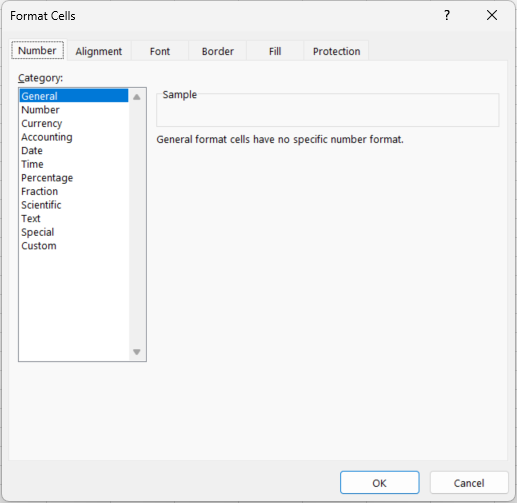
In addition, there is also an option Special, which allows data to be formatted as an account number, telephone number, social security number, or place.
Adapting the formatting of the data to the type of data has many advantages. For example, you can avoid unnecessary decimals, make long series of numbers (e.g., telephone numbers) more readable, or automatically show negative amounts of money in red. This increases the readability and clarity of large amounts of data. However, in some situations, there is no standard format for the type of data that you want to process. In that case, you can create your own custom layout.
Type the number
123456789in an empty cell and press Enter. Select the cell and go to the Format Cells menu. Select Custom from the list. In the box to the right, some standard possibilities are given by Excel. When you choose an option from the right-hand box, you will see above it how this option changes the format of your number (try this!). In some cases, however, none of these options is suitable. Suppose a number (serial number, patient ID, process code) starts with a 0, Excel automatically removes this 0. To prevent this, you can create a layout yourself. Excel saves it in the workbook.Type
0123in a cell. As soon as you press Enter, you see that Excel removes the first 0. Now right-click on the cell and go to the menu Format Cells (shortcut Ctrl+1), the option Custom. The word "General" appears in the text box under Type. Remove it and replace it with0000(4 zeros) and click OK. This tells Excel to always fill the number in the cell with zeros up to 4 digits. The number 123 is now supplemented with zeros to 0123, when you type the number12this is added to 0012. However, when you type the number12345, there is no zero because the number already consists of more than 4 numbers. This approach only works if you want all numbers to consist of the same number of digits (for example, with serial numbers).Suppose you want to let every number start with 2 zeros. In this case, you choose (in the text bar under Type) as a format
00###. The#sign indicates that the original data may hold a digit. In this case, Excel will place 2 zeros before every number input that contains at most 3 digits. When you type1234in a cell, Excel will change this to 01234. Input data with more than 5 digits will not be changed.It is also possible to add letters to serial numbers. Suppose all serial numbers consist of an
Afollowed by a maximum of 4 digits. Then use as formatting"A"0000, and all entered numbers will be completed by zeros up to 4 digits after the letterA.In the list of Excel formatting options, you will see that it is also possible to add colors and parentheses. For example, type
[Blue](000)in the Type box, click OK, and type5in the cell. You will see that 5 is changed by Excel in (005) in blue.
It is not expected that you memorize all formatting options. However, you are expected to be able to change the formatting, and if necessary, use online resources to find the desired formatting options (e.g., Google "Excel custom number formats").
Copy and paste; freezing cell references
Calculate for the expected and the actual operating time the mean and the standard deviation (use the functions AVERAGE and STDEV.P), and place them at the top of column O or P. Make sure that Excel shows only 1 decimal. Use the Format Cells menu (shortcut Ctrl+1).
NotePlacing calculations in separate columnsWe do not place the mean and standard deviation below the data columns but in a separate column, for a reason. Namely, when there is only data in a column (and no other calculations) you can calculate the average of a column as follows:
=AVERAGE(G:G). You do not have to indicate the row numbers! When data is added, you do not have to adjust the formula either, because it applies to the entire column G. However, if you would place the average below the data (e.g., in row 2103) (as follows:=AVERAGE(G2:G2101)), and there are e.g., 4 rows of data, you first have to insert 4 rows to add the data, and you have to change the formula to=AVERAGE(G2:G2105). That does work, but is not very useful.With "copy and paste" you can have Excel do many calculations very quickly (Figure 9). It is important here to occasionally make use of the "freezing" of (a part of) the cell range in the formula. We will illustrate that in the next steps:
Select cell L2, in which we have just calculated the sum of the cells A2:A2101.
Copy cell L2 (using Ctrl+C), and paste it (Ctrl+V) to cell M2. Look at the formula in cell M2. This is
=SUM(B2:B2101). The formula in L2 was=SUM(A2:A2101). By copying this formula 1 column to the right (from column L to M), Excel has increased the column-reference to column A by 1 to B. So cell M2 adds the data of column B.Copy cell L2 (with Ctrl+C), and paste it (Ctrl+V) in cell L3. Look at the formula in cell L3. This is
=SUM(A3:A2102). The formula in L2 was=SUM(A2:A2101). By copying the formula 1 row down, (from row 2 to 3), Excel has increased the row-references to both row 2 and row 2101 by 1, to 3 and 2102. So, in cell L3 we are no longer including cell A2 in the sum, and are now including the (empty) cell A2102! How do we prevent this? This is done by freezing the row references in cell L2 with a$sign, as follows.Change the contents of cell L2 to:
=SUM(A$2:A$2101). When you now copy cell L2 to L3, the row references are "frozen", i.e., are no longer changed (try this!).Similarly, column references are frozen by placing a
$sign before the column letter in a reference.You can quickly freeze references using the F4 button. Select cell L2, and select the cell-reference A2:A2101 as in Figure 8.
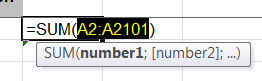
Figure 8: The reference A2:A2101 selected inside the SUM formula. Press F4 a number of times, and observe every time what it does with the reference. All variants of freezing cell references with and without
$signs can be obtained this way.You can also press F4 immediately after having typed a cell reference in a formula. For example, type the following in cell L2:
=SQRT(F2.Now press F4, and close the formula with a
)-sign, and press Enter.Copy cell L2 to L3. The result is the same in both cells:
=SQRT($F$2).
Figure 9: Moving and copying cells.
Conditional formatting
To make important data stand out in large spreadsheets, you may use Conditional Formatting (Figure 10). It determines the layout of cells based on standard or self-entered rules. To set a formatting rule for a collection of data, first select the data. Then go to the function Conditional Formatting on the Home tab.
Click on the New Rule option. The New Formatting Rule menu is opened. Here you can select various options for formatting the data depending on the value. For example, numbers above or below a certain value can be colored. You can also provide all values from the set that are below the average with a specific layout. Even when text is used in the data, you can attach a layout to it. For example, you can color all cells with "yes" green.
- Use Conditional Formatting to change the font of all cells in column F with ages "65 and higher" into red and bold.
Autofill
Autofill is a function that allows you to fill cells quickly and automatically with data so that you do not have to do this time-consuming task (Figure 11). Autofill can for example be used to complete a series of numbers, days, or even formulas (like 1, 2, 3, ....). Excel will need at least 2 starting cells to predict a series of numbers. If you start with 1 and 2, then Excel will predict that the next one should be 3, etc. In the following example, 1 input is already sufficient.
Open an empty worksheet and write
Mondayin cell B3. (Note: you might have to use the same language as your Excel is in, so in Dutchmaandag.) We want to place the days of the week next to each other in columns. You can do this by using Autofill:Position your cursor in the bottom-right corner of cell B3. It will change into a small black
+sign (Figure 12).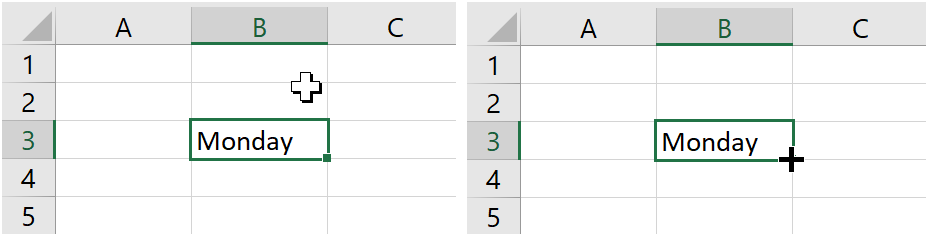
Figure 12: The pointer before and after it reaches the fill handle. After that, you can click (keep the mouse button pressed down) and drag your cursor to cell H3. Excel will now automatically fill in the correct sequence of days, and you can even go beyond cell H3 (Figure 13).
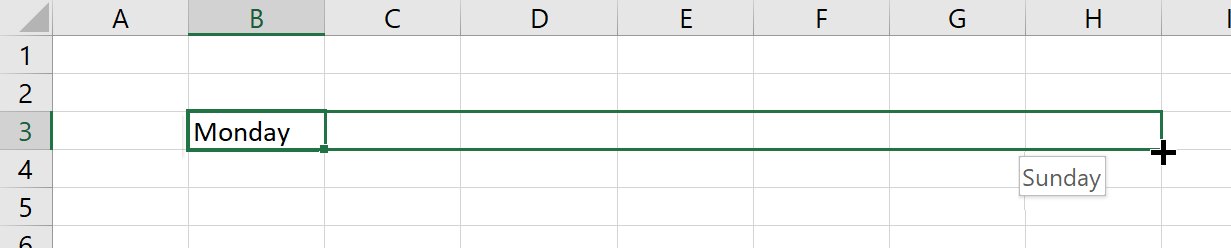
Figure 13: Dragging the fill handle from B3 to H3. Instead of dragging the cells, you can also double-click on the black
+sign that appears when you hover your mouse over the bottom right corner of a selected cell. This will autofill all the cells positioned under the original cell up to the row that the previous column was filled.
Fill cells A1:A50 with the numbers 1 to 50 on a new worksheet. Place in cell B1 the formula
=A1/2. Double-click the black cross, like in Figure 14. You will see that Excel applies autofill to the cells B2 to B50.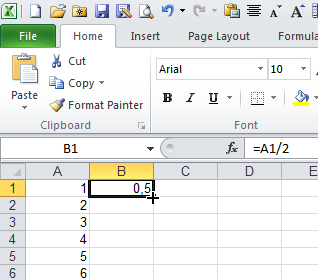
Figure 14: The fill handle on cell B1, which contains =A1/2 (Excel 2010). Delete the contents of cell A4 and B4. Put the formula
=B1*2in cell C1. Double-click on the black cross of cell C1. Now you can see that Excel stops to autofill cells when the previous column has an empty cell.
Autofill can also be used for months, years, dates, number series (like 1, 2, 3... or 2, 4, 6.... Or even Patient1, Patient2, ....).
Adjusting column width and row height
When words or large numbers are put into a single cell, it might occur that the cell is too small resulting in overlapping contents of cells or partly invisible contents. To fix this you can adjust the column width or the row heights of the cells, such that all contents are fully shown. There are 2 ways to achieve this:
First, select an entire column by clicking on the letter of that column. Then click with your right mouse button on the selected column and choose the option Column Width from the menu. Specify a number to increase the column's width.
Move your cursor to the top row with the letters of the columns. Position your cursor on the border that 2 columns share, like in Figure 15. When your cursor changes into a plus sign with horizontal arrow signs, you can click and drag the column to enlarge it. You can also double-click on this special plus sign to "autosize" the column to the minimum required width to show all contents of its cells.

Figure 15: The resize pointer on the border between columns B and C (Excel 2010).
The exact same principles apply to changing the height of the rows.
If you want to enlarge multiple columns and rows, then you can select them all. When you then click and drag a border to the desirable size, all selected columns and rows will then get that same size. Again, you can also double-click and then the size of all cells will be the same and as large as is needed to show the contents of the largest cell.
To quickly select the entire worksheet, click on the empty cell in the upper left corner (left of column A and above row 1). Alternatively, you can use the shortcut Ctrl+A.
Graphs
To create an overview of how often each surgery type occurs, we want to create a chart that displays the frequencies per surgery type. Excel can display data in various types of charts. A good workflow is:
- Create a small summary table (e.g., counts per category).
- Select the summary table.
- Go to Insert and pick an appropriate chart type.
After you insert a chart, the tabs Chart Design and Format appear. Use these to change the chart type, add chart elements, and format axes/labels.
For more information on charts in Excel, you can watch Figure 16.
Microsoft also offers some nice examples on chart design.
In the example above, we first selected the data and then chose a graph type. You can also do it the other way around (first select the graph type, then the data), but this way is usually perceived as much more complex.
Create a column chart that shows the frequency per surgery type. To do so, first calculate the frequencies per surgery type in column Q. You can do this using the COUNTIF function.
=COUNTIF(range, criteria)counts the cells inrangethat are equal tocriteria. Column K lists the 27 surgery types that you can use as criteria. Type the headingFrequencyin cell Q1. Fill in the formula in cell Q2 and then use AutoFill to apply the formula to the other rows (up until row 28). To use autofill correctly, you must "lock" parts of the formula as it was explained before. To select the chart data, select K1:K28. Then hold Ctrl and select Q1:Q28.To be able to estimate the surgery duration, we want to know if there is a relation between the age of the patient and the duration of the surgery.
In a graph (scatter plot), plot the 2 variables against each other. Set the X-axis (horizontal axis) in such a way that only ages between 15 and 85 years are visible. Can a relation be recognized? (Hint: add a trend line using the right mouse button menu, see Figure 17). On average, do the surgeries with older people require more time?
Figure 17: Adding a trendline. Make a histogram of the surgery durations with bins of 10 minutes. Each bar shows the number of surgeries in a 10-minute interval. Select the
Registered durationdata (only the data, not the title) and choose Insert > Insert Statistic Chart > Histogram. On a Mac, click the statistical chart icon on the Insert tab and choose Histogram. Then right-click the horizontal axis and choose Format Axis. Under Axis Options, select Bin width and type10.
IF-function
The IF function is one of the most used functions (Figure 18). It returns 1 value if a condition is true, and another value if it is false. Use the following syntax: =IF(logical_test, value_if_true, value_if_false)
(If your Excel uses ; as list separator, replace the commas with semicolons.)
Click the + button next to the sheet tabs to add a new, empty worksheet. Fill A1 to A10 with any numbers between 1 and 10. In B1 enter the formula: =IF(A1>=6, "pass", "fail")
The first part of the formula tests the condition (here, whether A1 is 6 or larger). If the condition is met, the formula returns the text "pass". Otherwise, it returns "fail". Copy the formula into B2 to B10.
If you want an empty cell as output, enter "" into the formula (these are 2 double quotes, not 4 single quotes).
IF functions may also be used within other IF functions if multiple conditions must be tested. Suppose you have a list of people with 3 columns: name, gender, and age. From this, you want to select all women aged 35 or older. This can be done with the use of a so-called "nested" IF function ("nested" means a function within a function, and Figure 19 shows the IFS alternative):
=IF($B2="woman", IF($C2>=35, "woman 35 or older", "woman under 35"), "man")
An AND function gives as output TRUE when all the conditions are met. When 1 or more conditions are not met, the output is FALSE.
An OR function returns TRUE when at least 1 of the conditions is met and FALSE when none of the conditions is met. The AND function and OR function can also be used within an IF function and combined with other functions.
People aged 65 and above need an extra inspection when they have surgery. We want to flag this in our data.
In the sheet
consultation_history, add a new column calledNotesin column K. To make room, right-click the column letter K and choose Insert. The list of surgery types moves to column L. TypeNotesin cell K1 and let Excel automatically add the text"extra inspection"for patients aged 65+ (and an empty cell otherwise). Use an IF formula and fill it down for all rows.We also want to quickly see the surgeries that took longer than 2 hours, with this we can see whether this happens a lot and for which type of surgeries.
Use Conditional Formatting to color surgeries that took longer than 2 hours (i.e.,
Registered duration > 120) red.When you make a mistake in a formula and you want to adjust that specific cell, click on the cell and press the F2 key. With the arrow keys, you can then navigate within the formula and correct the mistake.
Try this by going to a cell with a formula and selecting it with a mouse click, then press the F2 key. You will notice that this is a quick and easy way to adjust the cell.
Excel table
The Excel Table is a very useful functionality of Excel. It makes it easier to manage and analyze data. It also has the advantage that when you add data, all formatting and formulas are automatically applied to the new data. This saves a lot of time. Check Figure 20 about the usability of the Table.
In the sheet
consultation_history, convert the data range to an Excel Table (Ctrl+T). In the Create Table window, check the range before you click OK. The proposed range also includes the list of surgery types and your practice calculations. Change the range to=$A$1:$K$2101, so the Table holds only the patient records and theNotescolumn. Name this Tableconsultation_history(Table Design > Table Name).TipQuick data quality checksBefore you start analyzing, do a few quick checks:
- Are IDs unique? (Conditional Formatting > Highlight Cells Rules > Duplicate Values, see Figure 21)
- Are there missing values in key columns? (Filter for blanks, or use COUNTBLANK)
- Are numbers stored as text? (look for green triangles / unexpected alignment)
Figure 21: Finding and removing duplicates. The video ends with Remove Duplicates, which deletes rows. Only color the duplicates here, because the later questions use all 2,100 records.
In the following assignment, we will sort and filter the data. These short Microsoft videos show how to sort (Figure 22) and how to filter (Figure 23).
Figure 22: Sorting data. Figure 23: Filtering data. Practice sorting and filtering the
consultation_historyTable. For example, sortRegistered duration(increasing) and filter to show only patients aged 65+.Approximately a quarter of the patients who had a surgery will be approached for a survey, in connection with research about their pain experience with this organization.
Add a column where automatically and randomly a quarter of the patients will be selected for this survey. You need to do this with the RAND() function, this will select a random number between 0 and 1. Hint: If RAND() is smaller than 0.25, then select the patients (use the IF() function).
To insert the column, right-click a cell in the last Table column and choose Insert > Table Columns to the Right.
Because you transformed
consultation_historyinto an Excel Table, formulas entered in the first row of a column will automatically fill down to all rows.The RAND() function recalculates itself every time a cell in a worksheet changes (select an empty cell, press Delete; you can see that the cell has another value). Make sure the column does not change by copying it. With the Paste Special function, you only select Values. You replace the formulas with the calculated values.
The financial administration requires a unique code, which consists of the
Patient IDand theSurgery type.Add a column that compiles this code (a text field, see Figure 24), using the fields
Patient IDandSurgery type. For example, in an Excel Table you can use:=[@[Patient ID]] & "-" & [@[Surgery type]]Figure 24: Combining text into one cell.
Pivot table
The pivot table (Dutch: "draaitabel") summarizes large amounts of data. With a pivot table, you can analyze data quickly and change what it shows with a few clicks. This data can be shown in a table or in a standard graph. First, take a look at the short instruction video in Figure 25.
Now we would like to analyze the consultation data in consultation_history. For this, we will use a pivot table. In the following questions, you have to place each pivot table in a new worksheet, and make sure your calculations are shown with a maximum of 1 decimal. If Excel adds subtotals automatically, remove them (Design > Subtotals > Do Not Show Subtotals).
What is the average surgery duration of surgery type NI799 for women?
TipHintAs explained in the instruction video, start by envisioning the pivot table's rows and columns (i.e., what data fields are needed?), then design it. Here, the data fields needed are
Surgery type,Gender, andRegistered duration. The first 2 of these should be used for the rows and columns, and the last one to calculate the contents of the table. Excel shows the sum of a number field by default. To show the average, right-click a value in the pivot table and choose Value Field Settings. Then select Average.WarningKeep your pivot tables updatedIf you change any source data, the pivot tables will not be up-to-date automatically (in contrast to all the other graphics and tables in Excel). Hence, you need to right-click on the pivot table and select Refresh to update the pivot table (for data imported from a file, see Importing and refreshing data).
Some versions of Microsoft 365 have an Auto Refresh button on the PivotTable Analyze tab. When the button is on, the pivot table updates as soon as the source data changes.
Take a look at the average surgery duration of women and the surgery type
AF241in your pivot table. Search in the source data for a woman with surgery typeAF241and write down the duration of her surgery. Change the duration to 1000 minutes. Note: the average of the pivot table will not change, unless Auto Refresh is on. Right-click on the pivot table and choose Refresh to update the average. Change the duration back to the value you wrote down and refresh again. The next questions need the original durations.What is the average surgery duration for surgery type NC020 for men above 56?
How many hours were spent in total on surgery type WP174 for women?
How many surgeries were done of type IB847 for women?
Which surgery type has the largest average duration? How long is it?
Which surgery type has the largest standard deviation of the surgery duration? And how large is it? Use StDevp in Value Field Settings. StDevp gives the same result as the function STDEV.P.
Create a pivot chart (Figure 26) from your pivot table, which should show the average surgery duration for each gender and surgery type. Notice that the pivot chart has dropdown items to select a gender or surgery type.
Figure 26: Creating a PivotChart.
XLOOKUP and VLOOKUP
Suppose you want to look up some data in column "Y" of a large table, in the row where there is a particular value in column "X". For example, say you want the Membership number for Harry Carter from the table in Figure 27.
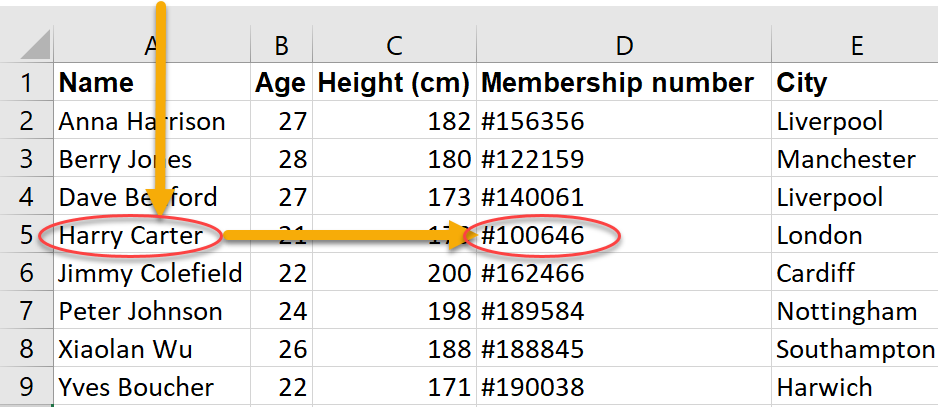
Use XLOOKUP for this kind of lookup (Figure 28). Type =XLOOKUP in an empty cell and press F1 to open Excel help for the function.
The function call in the example could be: =XLOOKUP("Harry Carter",$A$2:$A$9,$D$2:$D$9,"Not found")
To find the surgery time of patient number 543 using XLOOKUP, type:
=XLOOKUP(543,$A$2:$A$2101,$J$2:$J$2101)Hint: When you copy formulas down, use
$signs to keep ranges fixed (e.g.,$A$2:$A$2101).
Before XLOOKUP existed, the same lookups were done with VLOOKUP (Figure 29), which you will still meet in many workbooks. Type =VLOOKUP in an empty cell and press F1 to open Excel help for the function. The function call in the example above should be =VLOOKUP("Harry Carter",$A$2:$D$9,4,FALSE).
To find the surgery time of patient number 543 using VLOOKUP, you need to type:
=VLOOKUP(543,A2:J2101,10,FALSE). There are 4 fields in this formula. The first field is the value you are looking for (543). The second field is the table where you are looking in A2:J2101 (Note: the top header row is not included, as we do not want to look through that row!). The first column of the table is the column where you search for the value 543. The third field is10: if you found 543 in the first column, then the related row in table A2:J2101 needs to give the element in the 10th column. The result needs to be: 101.38. Check this.If you use the VLOOKUP function in a table, and you copy/pull down the formula to the rows below, make sure to add the
$signs to the table reference argument (i.e., the second argument).The fourth argument (
TRUE/FALSE) is calledrange_lookup. If set toTRUE, VLOOKUP will do an approximate search, i.e., find the largest value that is smaller than or equal to the value you are looking for. The first column must be sorted in ascending order for this search. If set toFALSE, VLOOKUP will do an exact search. Unlike XLOOKUP, VLOOKUP can only return values from columns to the right of the lookup column.Give the data of the patient who is 50 years old with
AX939, using the AutoFilter function.
Various functions
Excel has a large number of functions. It is impossible to memorize all of them. You can look up the functions you need in the Excel reference, which also lists keyboard shortcuts. However, some functions are used very often, and it is useful to know them by heart. To get an idea of how the functions will work within Excel, you will regularly use the following functions.
- SUM, AVERAGE, MEDIAN, MIN, MAX: basic summaries of a range
- COUNT, COUNTA, COUNTIF, COUNTIFS: counting (optionally with conditions)
- SUMIF, SUMIFS, AVERAGEIF, AVERAGEIFS: conditional aggregation
- IF, IFS, AND, OR, IFERROR: logic and error handling
- XLOOKUP: look up a value and return the matching result from another column/range
- RAND, RANDBETWEEN: random numbers (useful for simulation / sampling exercises)
- ROUND, ROUNDDOWN, ROUNDUP, ABS, SQRT, RANK.EQ: common numeric helpers
The following functions are useful for using in formulas:
- ROW: retrieve the row number of a cell
- COLUMN: retrieve the column number of a cell
- INDEX: return a value from a table based on row/column position
The following functions are very useful for editing or creating cells with text:
- LEFT: allows you to get a number of characters at the beginning of a text
- RIGHT: allows you to get a number of characters at the end of a text
- MID: returns characters from the middle of a text
- LEN: indicates the length of the text in a cell
&: use this in the formula to link text to each other- TRIM: removes extra spaces
- CONCAT / TEXTJOIN: combine texts (older Excel also has CONCATENATE)
- TEXT: converts a numeric value to a text
- FIND: looks for a text or character in another text
- REPT: repeats a character a number of times
Use these functions for the following exercises.
Go to the sheet
patient_data, which has a long column with (complete) patient names. Add 2 columns, and put the first name of the patients in the first, and the last name in the second. Hint: You need the LEN, RIGHT, LEFT, MID, and FIND functions for this.TipModern shortcut (optional)You can also split names using Flash Fill (Ctrl+E), Data > Text to Columns (Figure 30), or TEXTSPLIT in Microsoft 365 and Excel 2024. In this tutorial, we practice text functions to learn how formulas work.
Figure 30: Splitting text into columns. Add a column with
surname, first name(Hint: use the&sign to connect 2 strings).Add a column with an arbitrary age of each patient, between 0 and 100 years. Use the RANDBETWEEN function.
Every time you press the F9 button, the ages are re-drawn.
Select the column with ages, and copy them (Ctrl+C). Right-click on the same column, and choose Paste Special, and check the option Values. The column is now overwritten with the age values. The formulas with RANDBETWEEN in it are now gone, and with F9 no ages are drawn again.
Add a column where the age is indicated as
child(<18 years), oradult(18 to 64 years), or65+(for 65 and over).Make a table in which you count
child,adult, and65+. Use the COUNTIF function for this.Do the same, but with a pivot table.
Calculate the sum of the ages of patients younger than 10 years, but older than 5 years (a harder task). Do this with the SUMIFS function (Figure 31).
Figure 31: The SUMIFS function.
Trace precedents and trace dependents
The Formulas tab contains functionality to build and analyze formulas. Very useful are the Trace Precedents and Trace Dependents buttons (Figure 32).

Select a cell that is used in one of the formulas you have just built. Press the Trace Dependents button on the Formulas tab. You see that arrows appear to all cells using this cell. This allows you to determine whether you can safely erase a cell without changing things elsewhere in the worksheet. Press the Remove Arrows button to remove the arrows again.
Select a cell that contains a formula. Press the Trace Precedents button on the Formulas tab. "Precedent" means predecessor. You see that arrows appear to all cells used in the formula. Press the Remove Arrows button to remove the arrows again.
Data validation
With data validation, you can set conditions for the values allowed in a cell. For example, you can create a dropdown list in each cell containing the appropriate value for that cell. See Figure 33.
- Create a dropdown list in which you can select the surgery type. In the
consultation_historysheet, select theSurgery typecells I2:I2101. Go to Data > Data Validation. Under Allow, choose List. Click in the Source box and select the 27 cells below theSurgery typesheader. If you added theNotes, survey, and unique code columns, those cells are N2:N28. Otherwise, look for the header in column K, L, or M. Click OK. Now you can select the surgery type from a dropdown list in each cell of column I.
Printing
Printing is not central to data analysis, but it helps when you need to hand in a worksheet or report.
Microsoft Support:
- Open the sheet
consultation_history. Go to the File tab, and select Print. In the print preview, you see that not all columns fit on 1 page. Change the settings such that all columns fit on 1 page wide (but can be multiple pages long). Hint: Use the option Fit All Columns on One Page in the print settings. - Add a header and footer to the printed pages. In the header, place the text
Consultation History, and in the footer, place the page number. Hint: On the Page Layout tab, click the small arrow in the corner of the Page Setup group and open the tab Header/Footer. - Set the print area to only include the columns with data (i.e., the columns of the
consultation_historyTable). Use Page Layout > Print Area > Set Print Area. Then check in the print preview whether only these columns are printed. - Set the page orientation to landscape.
- Set the print area back to the entire worksheet (Page Layout > Print Area > Clear Print Area).
- Print the worksheet as a PDF file (Figure 34). Save it with the filename
consultation_history.pdf. Hint: Choose Microsoft Print to PDF as the printer.