2.6 Further Excel techniques
The following is not mandatory, but useful for those of you who want to go a step further with Excel.
2.6.1 Dynamic arrays (modern array formulas)
In Microsoft 365, Excel 2021, and Excel 2024, many formulas can return multiple results that spill into neighboring cells (Figure 1). With SORT, UNIQUE, and FILTER, you can build result tables that update when the data changes, without copying and pasting.
Dynamic array functions:
- FILTER: filters data based on criteria
- SORT and SORTBY: sort data
- UNIQUE: extracts unique values
- SEQUENCE: generates number sequences
- RANDARRAY: generates arrays of random numbers
Example: patients aged 65 or older
Type =FILTER(consultation_history!A2:J2101, consultation_history!F2:F2101>=65, "No results") in cell A1 of an empty worksheet. The result spills into 591 rows and 10 columns.
This replaces complex helper columns and traditional array formulas (Ctrl+Shift+Enter).
Older versions of Excel used CSE (Ctrl+Shift+Enter) array formulas, which required special entry. In Excel for Microsoft 365 and Excel 2021 or later, dynamic arrays largely replace CSE formulas.
2.6.2 Dynamic range
Excel functions like SUM and AVERAGE often have a range as an argument, e.g., A1:A10. What if this range should not be fixed, but depends on the number of (at that moment) filled cells? In that case, you speak of a dynamic range.
With Dynamic Arrays, you can reference spill ranges using the # (spill) operator. For example, if cell A1 contains =UNIQUE(consultation_history!I2:I2101), you can reference the 27 surgery types in the spill range with A1#.
Traditional approach (still useful): For non-365 versions or specific needs, you can create dynamic ranges using OFFSET and COUNTA. Enter =OFFSET(A1, 0, 0, COUNTA(A:A), 1) as the definition of a named range (Formulas > Define Name).
The named range grows automatically as you add data. OFFSET recalculates after every change in the workbook, which can make large workbooks slow.
In most cases, converting your data to an Excel Table (Ctrl+T) is simpler than creating dynamic named ranges. Tables automatically expand and contract with your data, and they work well with formulas, PivotTables, and charts.
For a more complete explanation, see: Microsoft Support: Dynamic array formulas and spilled array behavior.
2.6.3 Data tables and Goal Seek (What-If Analysis)
A data table shows the result of a formula for a range of values of 1 or 2 inputs. Goal Seek finds the value of 1 input that gives the result you want. Both use the same BMI worksheet. Build the worksheet in the data table section first.
Data table
The data table functionality allows you to quickly analyze what happens to the outcome of a calculation when 1 or 2 variables you have used in the formula assume different values. As an example, we take the calculation of your Body Mass Index (BMI).
Create a new worksheet, which holds the data in Figure 2.
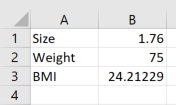
In cell B3 there is a formula in which the BMI is calculated as the ratio of Weight and the squared Size (= B2/B1^2). Fill cell E1 with a reference to the cell B3 with the BMI, so with =B3. Fill cells D2:D27 with the numbers 65, 66, ..., 90.
Select the range D1:E27. Go to the Data tab, and under What-If Analysis select the Data Table option, as shown in Figure 3.
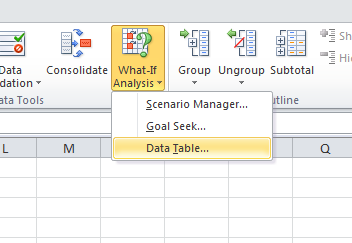
Figure 3: The Data Table option under What-If Analysis (Excel 2010). Enter a reference to cell
$B$2(the cell with the Weight) in the Column input cell option, and press OK. You see that you have made a table that calculates the BMI for all variants of Weight, with a fixed Size (cell B1).Write in cell H1 the formula
=B3(or a reference to the BMI formula). In cells H2 to H27, put the numbers 65, 66, ..., 90 again, and in the cells I1 to S1 the numbers 1.70, 1.71, ..., 1.80. Select the range H1:S27, and under What-If Analysis select the option Data Table. For Row input cell you choose$B$1(the cell with the Size), and for Column input cell you choose$B$2(the cell with the Weight). Press OK, and view the result.
To check your result, download BMI.xlsx. It holds the finished sheet with both data tables.
For a comprehensive explanation of the Data Table with 1 or 2 variables, see: Microsoft Support: Calculate multiple results by using a data table.
Goal Seek
Goal Seek allows you to determine what the value for 1 variable in a formula must be, to retrieve a desired outcome of the formula.
Suppose you want to know how much you should weigh to have a BMI of exactly 25. Click Goal Seek, on the Data tab, under What-If Analysis. You will get the window in Figure 4.
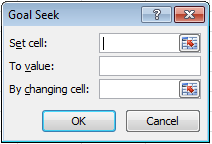
Figure 4: The empty Goal Seek window (Excel 2010). In the first box, you find an icon. When you click on this icon, you can select the cell in your worksheet where the formula is placed of which you want a certain outcome. Thus, select the cell with the BMI-formula. Type in the second box (To value) the number
25, and choose in the last box the cell where the weight is placed (Figure 5). Click OK. The weight that is calculated is 77.44 (with a size of 1.76). So a weight of 77.44 and a size of 1.76 give a BMI of exactly 25.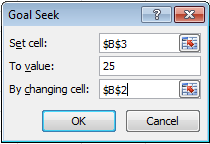
Figure 5: The Goal Seek window filled in for a BMI of 25 (Excel 2010).
For a more extensive explanation of Goal Seek, see: Microsoft Support: Use Goal Seek to find the result you want by adjusting an input value.