import csv
from pathlib import Path
FIELD_NAMES = ["Name", "Age", "Email Address"]
def create_sample_file(file_path: Path) -> None:
with file_path.open("w", newline="", encoding="utf-8") as file:
writer = csv.DictWriter(file, fieldnames=FIELD_NAMES)
writer.writeheader()
writer.writerow(
{
"Name": "Alex",
"Age": "19",
"Email Address": "alex@example.com",
}
)
def prompt_with_default(label: str, current_value: str) -> str:
response = input(f"{label} [{current_value}]: ").strip()
return response or current_value
def update_user_record(file_path: Path) -> dict[str, str]:
"""Prompt for replacements, rewrite the CSV, and return the saved row."""
raise NotImplementedError6.4 Manipulating files
Files are an essential part of any programming language. Information is often stored in files, and programs need to read from and write to files to interact with data. When you save data in a variable, it is stored in the computer's memory (RAM), which is temporary. If you want to store data permanently, you need to save it to a file on disk. Therefore, to persist data across different runs of a program, you need to read from and write to files. Python provides built-in functions and modules to work with files, making it easy to handle file operations.
In this chapter, you will learn how to read and write files in Python, manipulate file paths, organize files, and handle errors related to file operations.
6.4.1 Parts of a file path
A file path is the location of a file or folder on a computer. It consists of several parts, including the following:
- Root: The root is the starting point of the file system. On Windows, a drive root includes a drive letter and a backslash (e.g.,
C:\). On macOS and Linux, the root is/. - Directories: Directories are folders that contain files or other directories. They are separated by slashes (
/on macOS and Linux,\on Windows). - File Name: The file name is the name of the file, including the extension (e.g.,
example.txt). - Extension: The extension is the part of the file name after the dot (
.) that indicates the file type (e.g.,.txt,.csv,.py).
6.4.2 Directory paths
When working with files, you often need to manipulate directory paths. Here are some common terms related to directory paths:
- Parent Directory: The parent directory of a file or folder is the directory that contains it. For example:
- The parent directory of
file.txtinC:\Users\UserName\Documents\file.txtisDocuments. - The parent directory of
DocumentsinC:\Users\UserName\DocumentsisUserName. - The parent directory of
UserNameinC:\Users\UserNameisUsers.
- The parent directory of
- Current Directory: The current directory is the directory in which the program is running. When you open a file without specifying a path, Python looks for the file in the current directory.
- Home Directory: The home directory is the default directory for a user. On Windows, it is typically
C:\Users\UserName, on macOS, it is typically/Users/UserName, and on Linux, it is typically/home/UserName. - Working Directory: The working directory is the directory from which the program is running. For example:
- If you run a Python script from
C:\Users\UserName, the working directory isC:\Users\UserName. - If you run a Python script from
/Users/UserName, the working directory is/Users/UserName. - If you run a Python script from a different directory, that directory becomes the working directory.
- If you run a Python script from
6.4.3 Absolute vs. relative paths
There are two types of file paths: absolute and relative.
- Absolute Path: An absolute path specifies the full path to a file or folder from the root directory.
- Relative Path: A relative path specifies the path to a file or folder relative to the current working directory. In file paths,
..(double dots) and.(single dot) are relative path notations used to navigate directories:..: Refers to the parent directory of the current directory.
.: Refers to the current directory.
For example, consider the following directory structure:
The absolute paths are:
C:\Users\UserName\Documents\folder\file.txt(full path tofile.txt).C:\Users\UserName\Documents\folder(full path tofolder).C:\Users\UserName\Documents(full path toDocuments).C:\Users\UserName(full path toUserName).C:\Users(full path toUsers).
Now, let's assume the current working directory is C:\Users\UserName\Documents (your terminal or command prompt is open in this directory or your Python script is running from this directory). Table 1 shows examples of navigating directories using the cd (change directory) command with relative paths.
cd with relative paths assuming the starting directory is C:\Users\UserName\Documents.
| Target Directory | Command | Explanation |
|---|---|---|
C:\Users\UserName |
cd .. |
Move up one level from Documents to the parent directory UserName. |
C:\Users |
cd ..\.. |
Move up two levels to Users. |
C:\Users\UserName\Documents\folder |
cd folder |
Move down into the folder subdirectory of Documents. |
C:\Users\UserName\Documents |
cd . |
Stay in the current directory (Documents). |
C:\Users\UserName\Documents\folder |
cd folder |
Move down to folder from Documents. |
C:\Users\UserName\Documents\folder (contains file.txt) |
cd folder |
Navigate to folder; cd changes directories and does not open file.txt. |
C:\ |
cd ..\..\.. |
Move up three levels to the root directory (C:\). |
6.4.4 Checking path validity
Before working with files, it's essential to check if the file or directory path is valid. You can use the os.path module in Python to check the validity of a path. The os.path module provides functions to manipulate file paths and check path validity.
Here are some common functions in the os.path module:
os.path.exists(path): Check if the path exists.os.path.isfile(path): Check if the path is a file.os.path.isdir(path): Check if the path is a directory.os.path.getsize(path): Get the size of the file in bytes.os.path.basename(path): Get the base name of the file or directory. For example,os.path.basename('C:/Users/UserName/Documents/file.txt')returnsfile.txt.os.path.dirname(path): Get the directory name of the file or directory. For example,os.path.dirname('C:/Users/UserName/Documents/file.txt')returnsC:/Users/UserName/Documents.os.path.split(path): Split the path into the directory name and the base name. For example,os.path.split('C:/Users/UserName/Documents/file.txt')returns('C:/Users/UserName/Documents', 'file.txt').os.path.join(path1, path2): Join two paths together. For example,os.path.join('C:/Users/UserName', 'Documents')returns'C:/Users/UserName\\Documents'on Windows and'C:/Users/UserName/Documents'on macOS and Linux.os.path.splitext(path): Split the file path into the root and the extension. For example,os.path.splitext('file.txt')returns('file', '.txt').
Note on Windows
On Windows, file paths use backslashes (\) to separate directories (e.g., C:\Users\UserName\Documents\file.txt). You can see this pattern in the terminal, file explorer, and many applications. However, you can also use forward slashes (/) on Windows. Python supports both backslashes and forward slashes in file paths. If you use backslashes in a string literal, you need to escape them with another backslash (e.g., C:\\Users\\UserName\\Documents\\file.txt). Alternatively, you can use raw strings by prefixing the string with r (e.g., r'C:\Users\UserName\Documents\file.txt'). Raw strings treat backslashes as literal characters and do not escape them.
6.4.5 Creating folders
You can create new folders in Python using the os.makedirs() function. The os.makedirs() function creates a directory and any necessary parent directories. For example:
os.makedirs('C:/Users/UserName/Documents/NewFolder')creates a new folder namedNewFolderin theDocumentsdirectory.- If any parent directories (e.g.,
Documents,UserName) do not exist, they are created as well. - If the folder
NewFolderalready exists,os.makedirs()will raise aFileExistsError. If you want to ignore this error, you can use theexist_ok=Trueparameter, for example:os.makedirs('C:/Users/UserName/Documents/NewFolder', exist_ok=True). - If the path is relative, the folder is created in the current working directory (the directory from which the Python script is run). You can use
os.getcwd()to get the current working directory.
- If any parent directories (e.g.,
os.makedirs('NewFolder')creates a new folder namedNewFolderin the current working directory. The current working directory is the directory from which the Python script is run (you can get the current working directory usingos.getcwd()).
6.4.6 Folder contents
You can list the contents of a folder using the os.listdir() function. The os.listdir() function returns a list of files and directories in the specified folder. For example, consider the following directory structure:
Suppose main.py contains the following code:
In the terminal, this will result in different outputs depending on the current working directory. The order of the names returned by os.listdir() can vary:
os.listdir() depends on the current working directory from which the Python script is run.
| Current Working Directory | Terminal Command | Output |
|---|---|---|
C:\Users\UserName |
python main.py |
['main.py', 'data', 'src', 'tests'] |
C:\Users\ |
python UserName\main.py |
['UserName'] |
C:\ |
python Users\UserName\main.py |
['Users'] |
6.4.7 Reading and writing files
In Python, you can read and write files using the built-in open() function. The open() function returns a file object that allows you to interact with the file. You can specify the mode in which you want to open the file (e.g., read, write, append) and the encoding to use when reading or writing the file.
Reading files
You can read the contents of a file using the read() method of a file object. The read() method reads the entire file and returns its contents as a string. For example:
The open() function takes two arguments: the file path and the mode ('r' for reading). The read() method reads the entire file, and the close() method closes the file after reading.
Writing to files
You can write to a file using the write() method of a file object. The write() method writes the specified string to the file. For example:
The open() function takes two arguments: the file path and the mode ('w' for writing). The write() method writes the specified string to the file, and the close() method closes the file after writing. Any existing content in the file is overwritten when you write to a file in write mode ('w'). If you want to append to the file without overwriting the existing content, you can use append mode ('a'). For example:
If a file does not exist
When opening a file for reading, Python raises a FileNotFoundError if the file does not exist. Write mode ('w') and append mode ('a') create a missing file when its parent directory exists. You can handle this error using a try-except block. For example:
Using the with statement
When working with files, it's a good practice to use the with statement to ensure that the file is properly closed after reading or writing. The with statement automatically closes the file when the block of code is exited. For example:
The with statement ensures that the file is closed even if an exception occurs while reading or writing the file.
Reading line by line
You can read a file line by line using the readline() method of a file object. The readline() method reads a single line from the file and returns it as a string. For example:
Reading all lines
You can read all lines from a file into a list using the readlines() method of a file object. The readlines() method reads all lines from the file and returns them as a list of strings. Then, you can iterate over the list to process each line. For example:
But what happens if the file is too large to fit into memory? For example, if a file is several gigabytes in size, reading it all into memory at once may not be feasible. In such cases, you can read the file line by line using a for loop. For example:
This method reads the file line by line, processing each line as it is read. It is more memory-efficient than reading the entire file into memory at once.
6.4.8 File sizes
You can get the size of a file in bytes using the os.path.getsize() function. The os.path.getsize() function takes a file path as an argument and returns the size of the file in bytes. For example, in Listing 1, the size of the file vogals.txt is printed after each character is added to the file.
import os

# Start with an empty disposable file for the output shown below.
with open('vogals.txt', 'w', encoding='utf-8') as file:
    pass


def get_file_size(file_path):
    """Return the size of the file in bytes."""
    return os.path.getsize(file_path)

for letter in 'aeiou':

    # Append the letter to the file
    with open('vogals.txt', 'a', encoding='utf-8') as file:
        file.write(letter)

    print(f"## Added letter: {letter}")

    # Show the content of the file
    with open('vogals.txt', 'r', encoding='utf-8') as file:
        print(f"   - Content of file: {file.read()}")

    # Print the size of the file
    print(f"   - Size of file: {get_file_size('vogals.txt')} bytes")
The result of running the code in Listing 1 is as follows:
## Added letter: a
   - Content of file: a
   - Size of file: 1 bytes
## Added letter: e
   - Content of file: ae
   - Size of file: 2 bytes
## Added letter: i
   - Content of file: aei
   - Size of file: 3 bytes
## Added letter: o
   - Content of file: aeio
   - Size of file: 4 bytes
## Added letter: u
   - Content of file: aeiou
   - Size of file: 5 bytes
6.4.9 Copying files and folders
You can copy files and folders in Python using the shutil module. The shutil module provides functions to copy, move, and delete files and directories.
| Function | Description | Example |
|---|---|---|
shutil.copy(src, dst) |
Copy a file from src to dst. |
shutil.copy('file.txt', 'copy.txt') |
shutil.copytree(src, dst) |
Copy a directory from src to dst. All files and subdirectories are copied recursively. |
shutil.copytree('folder', 'copy') |
Recursively copying a directory copies all files and subdirectories within the directory. For example, consider the following directory structure:
If you run the following code from the C:\Users\UserName directory:
The resulting directory structure will be:
6.4.10 Renaming and moving files and folders
To rename files and folders in Python, you can use the os.rename() function. The os.rename() function renames a file or directory from the source (src) to the destination (dst). The destination can have a different name or path. For example:
os.rename('file.txt', 'new_file.txt')renames the filefile.txttonew_file.txt.os.rename('folder', 'new_folder')renames the directoryfoldertonew_folder.os.rename('file.txt', 'new_folder/file.txt')moves the filefile.txtto thenew_folderdirectory with the same name. The foldernew_foldermust exist before moving the file.shutil.move('file.txt', 'new_folder/new_file.txt')moves the filefile.txtto thenew_folderdirectory with a new namenew_file.txt. The foldernew_foldermust exist before moving the file.shutil.move('folder', 'new_folder')renames the directoryfoldertonew_folderifnew_folderdoes not exist. Ifnew_folderis an existing directory, it movesfolderinside it.shutil.move('folder', 'new_folder/folder')moves the directoryfolderto thenew_folderdirectory with the same name. The foldernew_folderis created if it does not exist.
6.4.11 Removing files and folders
You can permanently delete files and folders in Python using:
os.remove(file_path): Delete a file.os.unlink(file_path): Delete a file (same asos.remove()).os.rmdir(directory_path): Delete an empty directory.shutil.rmtree(directory_path): Delete a directory and all its contents.
ImportantTest before deleting
Before deleting files or folders, make sure to test your code thoroughly to avoid accidentally deleting important data. Once a file or folder is deleted, it cannot be recovered easily. Some tips to avoid accidental deletions include:
Use version control systems like Git to track changes and revert to previous versions if needed.
Make backups of important files and folders before performing any deletion operations.
Double-check the file or folder path before deleting it. You can comment out the deletion code and run the script to see the files or folders that will be deleted. For example:
6.4.12 Using pathlib for file operations
The pathlib module provides an object-oriented interface for file path manipulation. It simplifies working with file paths by providing classes and methods to handle paths in a platform-independent way.
Creating file paths
In pathlib, file paths are represented as Path objects. You can create a Path object by passing the file path as a string to the Path constructor. Listing 2 shows how to create a file path object using pathlib. Listing 2 (a) uses the Path constructor, and Listing 2 (b) uses the / operator.
pathlib. The file path Documents/folder/file.txt is created using the constructor Path and the / operator.
Path. Each part of the path is passed as a separate argument.
Parts of a file path
In pathlib, you can access different parts of a file path using attributes and methods. For example, the file path C:\Users\UserName\Documents\file.txt has the following parts:
C: Drive letter.C:\: Anchor (root directory).\Users\UserName\Documents: Parents (directories leading to the file).file.txt: Name (file name).file: Stem (file name without extension)..txt: Suffix (file extension).
On Windows, let p = Path(r"C:\Users\UserName\Documents\file.txt"). Table 3 shows some examples of accessing parts of a file path using pathlib.
pathlib.
| Attribute/Method | Description | Result |
|---|---|---|
p.name |
Get the file name. | 'file.txt' |
p.stem |
Get the file name without the extension. | 'file' |
p.suffix |
Get the file extension. | '.txt' |
p.anchor |
Get the root directory. | 'C:\\' |
p.parent |
Get the parent directory. | WindowsPath('C:/Users/UserName/Documents') |
p.parents |
Get the parent directories. | WindowsPath('C:/Users/UserName/Documents'), WindowsPath('C:/Users/UserName'), WindowsPath('C:/Users'), WindowsPath('C:/') |
File handling methods
In pathlib, file handling methods are available to read, write, and manipulate files. Consider the directory structure:
Table 4 shows some examples of how to read, write, rename, and delete files using pathlib.
pathlib.
| Command | Description | Result |
|---|---|---|
Path('Documents', 'file.txt').exists() |
Check if the file exists. | True |
Path('Documents', 'file.txt').is_file() |
Check if it is a file. | True |
Path('Documents', 'file.txt').is_dir() |
Check if it is a directory. | False |
Path('Documents', 'file.txt').absolute() |
Get the absolute path. | WindowsPath('C:/Users/UserName/Documents/file.txt') |
Path('../OtherUser').resolve() |
Get the absolute path of a relative path. | WindowsPath('C:/Users/OtherUser') |
Path('/') |
Create a root path. | WindowsPath('/') |
Path('/').absolute() |
Get the absolute path of the root. | WindowsPath('C:/') |
Path().cwd() |
Get the current working directory. | WindowsPath('C:/Users/UserName') |
Path.home() |
Get the home directory. This directory is platform-dependent. | WindowsPath('C:/Users/UserName') |
6.4.13 Walking directories
You can walk through directories and subdirectories using the os.walk() function. The os.walk() function generates the file names in a directory tree by walking either top-down or bottom-up. For each directory in the tree, it yields a 3-tuple containing the directory path, the subdirectories in the directory, and the files in the directory.
For example, consider the following directory structure:
You can walk through the directories and subdirectories using the os.walk() function. For example:
The os.walk() function generates the following output:
6.4.14 Working with JSON files
The json module in Python allows you to work with JSON (JavaScript Object Notation) files. JSON is a lightweight data interchange format that is easy for humans to read and write and easy for machines to parse and generate.
You can read JSON data from a file using the json.load() function. The json.load() function reads the JSON data from the file and returns a Python object. A JSON object becomes a Python dictionary, and a JSON array becomes a list. For example, consider the following JSON data in a file named config.json where you have stored configuration settings of a simulation:
You can read this JSON data from the file using the following Python code:
The json.load() function reads the JSON data from the file and returns it as a Python dictionary. You can then access the data in the dictionary as needed.
You can also write JSON data to a file using the json.dump() function. The json.dump() function writes the JSON data to the file in a human-readable format. For example, consider the following Python list of dictionaries that you want to write to a JSON file:
You can write this data to a JSON file named results.json using the following Python code:
The json.dump() function writes the JSON data to the file in a human-readable format with an indentation of 4 spaces. You can adjust the indentation level as needed.
Working with JSON data as strings
The loads() and dumps() functions in the json module are used to work with JSON data as strings. The loads() function parses a JSON string and returns a Python object, while the dumps() function converts a Python object to a JSON string. For example:
6.4.15 CSV, Excel, and other file formats
In addition to JSON files, Python supports reading and writing data in various file formats, such as CSV (Comma-Separated Values), Excel, and text files. Search for the appropriate Python libraries to work with these file formats, such as:
csvorpandasfor reading and writing CSV files. Useful for tabular data.openpyxlorpandasfor reading and writing Excel files. Useful for spreadsheets.sqlite3for working with SQLite databases. Useful for storing structured data and querying it using SQL.yamlfor reading and writing YAML (Yet Another Markup Language) files. Useful for configuration files.picklefor serializing and deserializing Python objects (not human-readable, but efficient for storing data). Serializing is the process of converting a Python object into a byte stream, and deserializing is the process of converting the byte stream back into a Python object.pyarrowfor reading and writing Apache Parquet files. Parquet is a columnar storage file format that is efficient for analytics and data processing used in big data systems.
6.4.16 References
6.4.17 Exercises
6.4.Q1 Write data to a CSV file
Create a table whose headers are "Name", "Age", and "Email Address". Then add your name, age, and email address as the first data row.
Write the table to a file called user_data.csv. Use a nested list to represent the rows, pathlib.Path for the file path, and the csv module to write the data. Opening a file in write mode replaces its existing contents, so test your function with a disposable file.
Start from the function template in Listing 3.
6.4.Q2 Read data from a CSV file
Create a function called read_user_data that reads the first data record from user_data.csv and returns a message in the format shown in Listing 4.
Use csv.DictReader so the values are accessed through the column names rather than numerical positions. Print the returned message to display it in the console.
The supplied create_sample_file helper creates a complete disposable input file, so no other exercise must be completed first.
TipString interpolation and new lines
Use an f-string to insert values into text, for example, f"Name: {user['Name']}". Use \n to add a new line inside a string.
Use the supplied helper and function template in Listing 5.
import csv
from pathlib import Path


def create_sample_file(file_path: Path) -> None:
    with file_path.open("w", newline="", encoding="utf-8") as file:
        writer = csv.writer(file)
        writer.writerow(["Name", "Age", "Email Address"])
        writer.writerow(["Alex", 19, "alex@example.com"])


def read_user_data(file_path: Path) -> str:
    # Read and format the first data record beneath the CSV header.
    raise NotImplementedError
Create a disposable file with create_sample_file, call read_user_data, and verify that the returned message contains all three values.
6.4.Q3 Update a pre-filled CSV record
Create a command-line editor for one record in user_data.csv. The file has the columns Name, Age, and Email Address. Show each current value as the default; pressing Enter keeps that value, while entering text replaces it. Write the resulting record back to the same file.
For example, if the stored name is Alex, its prompt should be:
Listing 6 shows the prompt with the current name.
The supplied create_sample_file function makes this exercise independent of any earlier file-writing task.
Use the supplied helpers and function template in Listing 7.
Test with a disposable path: call create_sample_file, update at least one field, then reopen the file and verify that it still contains one header and one data record.
6.4.Q4 PyPhotoshop
Have you ever applied an Instagram filter to your photos to instantly change their look and feel? Images are just arrays of numbers, and we can manipulate these numbers to create various effects.
Photo editors such as Photoshop let you rotate, crop and resize photos or apply filters. In PyPhotoshop, you will implement these operations in Python by changing a matrix of pixel values.
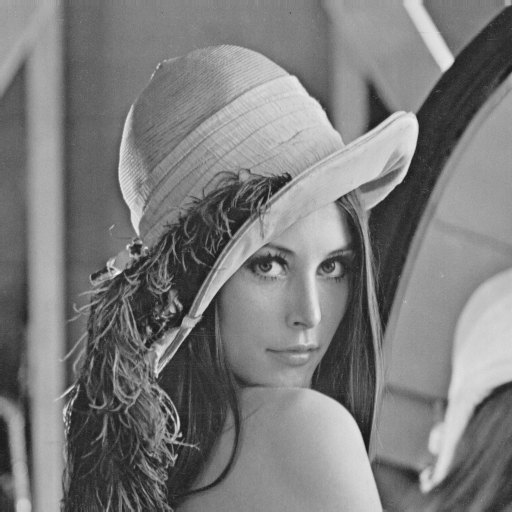
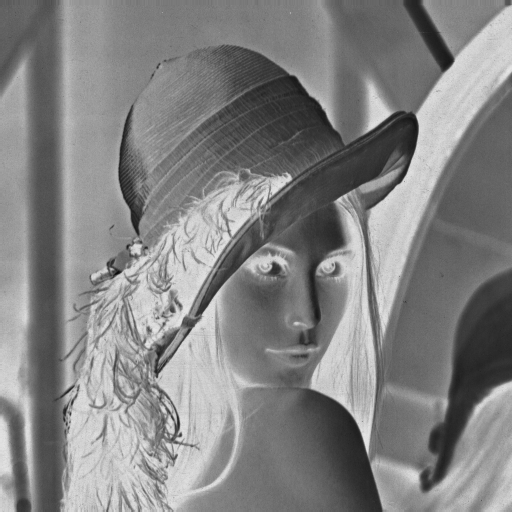
One popular effect is the "negative" filter, which inverts the colors of an image, turning light areas dark and dark areas light (see Figure 1). This concept can be directly applied to grayscale images using a simple mathematical transformation: 255 - pixel_value. The formula inverts the grayscale value of a pixel, where pixel_value is the original grayscale value ranging from 0 (black) to 255 (white).
You will use nested lists, indexing, loops and arithmetic to implement image transformations and filters. The supplied helpers handle image files, so each function you write can be tested with a small matrix of numbers.
Images as matrices
A grayscale pixel is an integer from 0 (black) through 255 (white). A matrix has one list per row. rows[y][x] selects row y and column x, starting at 0 in the top-left corner. len(rows) is its height and len(rows[0]) is its width. Every input is nonempty and rectangular.
Each assessed function receives a matrix and returns a new matrix. Leave the input rows unchanged and create separate output rows. A return statement gives the result to the caller. Printing or saving alone does not return the matrix. Inputs satisfy each docstring's ranges; invalid-input handling is not required. You can work through every example with ordinary lists, without image files.
Worked example: a negative filter
A negative filter subtracts each pixel value from 255. For example, a pixel with value 155 becomes 100. The supplied negative_filter function receives a matrix and returns new rows containing the inverted values.
To implement this filter effect in Python, we can read an image into a matrix, iterate over each pixel value, apply the inversion formula, and store the new pixel value in a separate matrix. The supplied image-loading function reads the file; negative_filter receives the resulting matrix (list of lists).
For an image with width 3 and height 3, the algorithm turns the 3x3 matrix of pixel values shown in Table 5 (a) into the inverted matrix displayed in Table 5 (b). It visits each cell, applies 255 - pixel_value, and appends that value to a new row. The original matrix contains the values before inversion, and the inverted matrix contains the values after applying the algorithm.
Table 5 compares the original and inverted values.
| Row | A | B | C |
|---|---|---|---|
| 1 | 155 | 105 | 55 |
| 2 | 135 | 75 | 35 |
| 3 | 115 | 95 | 15 |
255 - pixel_value.
| Row | A | B | C |
|---|---|---|---|
| 1 | 100 | 150 | 200 |
| 2 | 120 | 180 | 220 |
| 3 | 140 | 160 | 240 |
In Listing 8, we provide the complete implementation of negative_filter. For each input row, it creates an empty output row. The inner loop calculates the inverted value for each pixel and appends it to that row. After processing the row, the outer loop appends it to the result. The function returns the new matrix and leaves the original rows unchanged.
def negative_filter(rows: list[list[int]]) -> list[list[int]]:
    """Invert each grayscale value in a matrix.

    Parameters
    ----------
    rows : list[list[int]]
        Nonempty rectangular matrix of grayscale integers from 0 to 255.

    Returns
    -------
    list[list[int]]
        New rows containing 255 minus each input value. Leave rows unchanged.

    Examples
    --------
    >>> negative_filter([[155, 105, 55], [135, 75, 35], [115, 95, 15]])
    [[100, 150, 200], [120, 180, 220], [140, 160, 240]]
    """
    result = []
    for row in rows:
        inverted_row = []
        for pixel in row:
            inverted_row.append(255 - pixel)
        result.append(inverted_row)
    return result
Images and supplied helpers
The starter files contain the task files, images and image_utils.py.
image_utils.py is complete and supplied. Leave it unchanged. Its helpers handle image loading, grayscale conversion, saving and optional local display. Call the helpers to try your matrix functions on the supplied images.
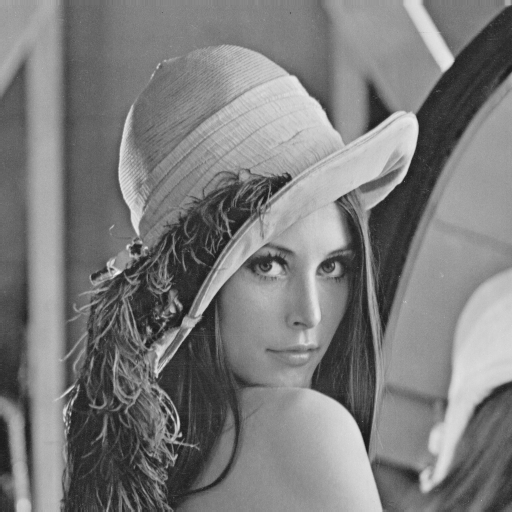
Save the supplied image_utils.py beside your task files when working in a Python script. It provides complete utility functions to read an image into a matrix (list of lists), create an image from a matrix, save it, and display it. The matrices in the docstring examples illustrate the layout; the downloadable Lena image has 512 rows and 512 columns.
get_image_as_matrix(image_path)reads the file atimage_path, converts it to grayscale and returns a list of rows. For example,get_image_as_matrix('img/example.png')returns[[10, 20, 30], [40, 50, 60]]. A relative path is interpreted from your working directory. The input file must exist and be readable.get_image_from_matrix(rows)creates a new grayscale image from a nonempty, rectangular matrix of integers from 0 to 255. For example,get_image_from_matrix([[0, 255]])creates an image two pixels wide and one pixel high. It returns an image object and leavesrowsunchanged.save_image_from_matrix(rows, output_image_path)saves the matrix as an image and returnsNone. The containing folder must exist. For example,save_image_from_matrix([[0, 255]], 'output.bmp')writes a two-pixel image. Saving at an existing path replaces the file at that path.show_image_from_matrix(rows)opens the grayscale image in your local image viewer and returnsNone. For example,show_image_from_matrix([[0, 255]])displays those two pixels. Display is optional local work outside the CodeGrade editor.
These functions perform the image-library operations for you. Your assessed functions receive and return ordinary matrices. Listing 10 shows how the loading and saving calls fit around a matrix transformation.
Listing 9 shows the complete 6x6 matrix used to illustrate creating and saving an image. Its first column is black; every other pixel has value 240. This small example illustrates the matrix layout; it is a different image from the 512x512 Lena photograph. Creating the image returns an image object. Saving writes the file, and reading it back returns the same nested list of pixel values.
from image_utils import (
    get_image_as_matrix,
    get_image_from_matrix,
    save_image_from_matrix,
)

sample_rows = [
    [0, 240, 240, 240, 240, 240],
    [0, 240, 240, 240, 240, 240],
    [0, 240, 240, 240, 240, 240],
    [0, 240, 240, 240, 240, 240],
    [0, 240, 240, 240, 240, 240],
    [0, 240, 240, 240, 240, 240],
]
image = get_image_from_matrix(sample_rows)
print(image.size)  # (6, 6)
save_image_from_matrix(sample_rows, 'img/example_grayscale.bmp')
loaded_rows = get_image_as_matrix('img/example_grayscale.bmp')
print(loaded_rows == sample_rows)  # True
Listing 10 shows loading a matrix, rotating it and saving the result.
from image_utils import get_image_as_matrix, save_image_from_matrix
from rotate_image import rotate_image

rows = get_image_as_matrix('img/example.png')
# rows is [[10, 20, 30], [40, 50, 60]]
rotated = rotate_image(rows, 'clockwise')
# A correct answer gives [[40, 10], [50, 20], [60, 30]].
save_image_from_matrix(rotated, 'rotated.png')
Only the eight matrix functions are graded. The tests pass ordinary lists to them and inspect the returned lists. Image I/O and the supplied helpers are not tasks to implement. All images remain in img/ for optional demonstrations.
TipHint
The supplied helper implementations are in Listing 11. They are already complete in image_utils.py; call them without implementing any PIL logic. The negative filter demonstrated above is supplied in the same file.
image_utils.py
"""Supplied image I/O and a matrix example. Leave this file unchanged."""


def get_image_as_matrix(image_path: str) -> list[list[int]]:
    """Read an image as grayscale rows using the supplied conversion.

    Parameters
    ----------
    image_path : str
        Path to a readable image file.

    Returns
    -------
    list[list[int]]
        One list per image row, with integer pixel values from 0 to 255.

    Examples
    --------
    >>> get_image_as_matrix('img/example.png')
    [[10, 20, 30], [40, 50, 60]]
    """
    from PIL import Image

    with Image.open(image_path) as image:
        gray = image.convert('L')
        width, height = gray.size
        values = list(gray.getdata())
    rows = []
    for y in range(height):
        rows.append(values[y * width:(y + 1) * width])
    return rows


def get_image_from_matrix(rows: list[list[int]]):
    """Create a grayscale display image using the supplied conversion.

    Parameters
    ----------
    rows : list[list[int]]
        Nonempty rectangular matrix of grayscale integers from 0 to 255.

    Returns
    -------
    PIL.Image.Image
        A new grayscale image. The input rows remain unchanged.
    """
    from PIL import Image

    image = Image.new('L', (len(rows[0]), len(rows)))
    pixels = []
    for row in rows:
        pixels.extend(row)
    image.putdata(pixels)
    return image


def save_image_from_matrix(
    rows: list[list[int]],
    output_image_path: str,
) -> None:
    """Save grayscale rows with the supplied image conversion.

    Parameters
    ----------
    rows : list[list[int]]
        Nonempty rectangular matrix of grayscale integers from 0 to 255.
    output_image_path : str
        Destination image path. The containing folder must already exist.

    Returns
    -------
    None
        Save the image and leave the input rows unchanged.
    """
    get_image_from_matrix(rows).save(output_image_path)


def show_image_from_matrix(rows: list[list[int]]) -> None:
    """Display grayscale rows with the supplied image conversion.

    Parameters
    ----------
    rows : list[list[int]]
        Nonempty rectangular matrix of grayscale integers from 0 to 255.

    Returns
    -------
    None
        Open the local image viewer. The input rows remain unchanged.
        Available for optional local work outside the CodeGrade editor.
    """
    get_image_from_matrix(rows).show()
Implementation
To test the supplied helper functions and Listing 8 with a real image, place lena_grayscale.bmp in an img directory beside your script. The starter download includes this image. You can also download the original grayscale image of Lena and save it as img/lena_grayscale.bmp. The complete original image files include the color, blurred and inverted images.
For a Python script, put image_utils.py in the same folder and begin with the imports in Listing 13. The imports make the complete loading, negative-filter, saving and display functions available to your script. In a notebook, keep image_utils.py in the notebook's working directory and run the imports before making the calls. You can also run the complete supplied helper listing and negative-filter listing in notebook cells before calling their functions.
The examples use Pillow inside the supplied helpers to open, convert and save images. For optional local work, install Pillow in the Python environment used by your notebook or script, as shown in Listing 12. The CodeGrade checks only need your matrix functions.
TipHint
Then, to get the negative of an image, call the functions as shown in Listing 13. Loading produces the input matrix, negative_filter returns the inverted matrix, and the last two calls save and display it. The result appears in Figure 2.
Listing 13 shows applying the supplied negative filter to an image file.
You can test the functions in the following ways:
- In a Jupyter notebook, run the imports and demonstration calls in a cell. To display the returned matrix as an image in the notebook, import
get_image_from_matrixand evaluateget_image_from_matrix(inverted)at the end of a cell. Evaluatinginvertedalone shows the list of rows. - In a Python script, use
show_image_from_matrix(inverted)to open the image viewer. Listing 14 shows a complete runnable script. Keep the suppliedimage_utils.pyandimgfolder beside this script and run it with that folder as the working directory. - Save the image with
save_image_from_matrix(inverted, 'img/lena_grayscale_negative.bmp'). The function receives the matrix directly and writes the image file. Open the saved file to inspect it. The matrix is still available for numerical checks, so displaying or saving it does not replace returning it.
from image_utils import (
    get_image_as_matrix,
    negative_filter,
    save_image_from_matrix,
    show_image_from_matrix,
)


def main():
    input_image_path = 'img/lena_grayscale.bmp'
    rows = get_image_as_matrix(input_image_path)
    inverted = negative_filter(rows)
    save_image_from_matrix(inverted, 'img/lena_grayscale_negative.bmp')
    show_image_from_matrix(inverted)


if __name__ == '__main__':
    main()
TipHint
round(value)returns the nearest integer, choosing the even integer at an exact halfway point. For example,round(2.5)is2.int(value)removes the fractional part of a positive value, soint(2.9)is2. Integer division5 // 2is2. Follow each task's stated conversion rule.abs(value)returns the magnitude, soabs(-10)is10.minandmaxselect the smallest and largest arguments. For example,min(255, max(0, 300))is255, whilemin(255, max(0, -10))is0.row.copy()creates a separate list with the same row values. Changing the copy does not change the original row of integer pixels.len(rows)counts rows.range(1, height - 1)supplies the interior row positions; whenheightis4, those positions are1and2.
Your tasks
Implement the eight functions below. Work independently without external help, including help from other people or generative AI. All instructions, examples and input images are supplied in this assignment.
The NumPy-style docstring in each task file states the inputs, returned matrix, boundary rules and numerical examples. Keep the filenames and function signatures. You may add your own helper functions.
Question 1. Image manipulation functions
Using the supplied functions to read grayscale images as matrices, implement the image manipulation functions below. Every input matrix is nonempty and rectangular. Return a new matrix and leave the input unchanged. Use only the listed direction labels. Crop coordinates, width and height are integers; width and height are positive and the rectangle lies within the image.
| Part | File and function | Required operation |
|---|---|---|
| 1a | rotate_image.py / rotate_image |
Rotate image |
| 1b | flip_image.py / flip_image |
Flip image |
| 1c | resize_image.py / resize_image |
Resize image |
| 1d | crop_image.py / crop_image |
Crop image |
| 1e | zoom_image.py / zoom_image |
Zoom image |
1a. Rotate image
This function rotates the image 90 degrees in the specified direction, either clockwise or counterclockwise, and returns the rotated matrix. A 90-degree rotation exchanges the image width and height.
Complete rotate_image.py. Its docstring gives the inputs, result and examples.
Listing 15 contains the starter for rotate_image.py.
rotate_image.py
def rotate_image(
    rows: list[list[int]],
    direction: str,
) -> list[list[int]]:
    """Rotate the grayscale image 90 degrees clockwise or counterclockwise.

    Parameters
    ----------
    rows : list[list[int]]
        Nonempty rectangular matrix of grayscale integers from 0 to 255.
        rows[y][x] selects row y and column x, starting at 0 in the
        top-left corner. Every row contains at least one pixel.
    direction : str
        Either 'clockwise' or 'counterclockwise'.

    Returns
    -------
    list[list[int]]
        A new matrix with as many rows as the input has columns, and
        as many columns as the input has rows.

        Leave rows unchanged. Create a separate list for every output
        row, including unchanged rows. Inputs satisfy the stated ranges;
        invalid-input handling is not required.

    Examples
    --------
    >>> rows = [[10, 20, 30], [40, 50, 60]]
    >>> rotate_image(rows, 'clockwise')
    [[40, 10], [50, 20], [60, 30]]
    >>> rotate_image(rows, 'counterclockwise')
    [[30, 60], [20, 50], [10, 40]]
    """
    pass
1b. Flip image
This function flips the image in the specified direction, either horizontal or vertical, and returns the flipped matrix. A horizontal flip reverses left and right; a vertical flip reverses top and bottom. Both keep the original width and height.
Complete flip_image.py. Its docstring gives the inputs, result and examples.
Listing 16 contains the starter for flip_image.py.
flip_image.py
def flip_image(
    rows: list[list[int]],
    direction: str,
) -> list[list[int]]:
    """Flip the grayscale image horizontally or vertically.

    Parameters
    ----------
    rows : list[list[int]]
        Nonempty rectangular matrix of grayscale integers from 0 to 255.
        rows[y][x] selects row y and column x, starting at 0 in the
        top-left corner. Every row contains at least one pixel.
    direction : str
        'horizontal' reverses the columns in each row (left and right).
        'vertical' reverses the row order (top and bottom).

    Returns
    -------
    list[list[int]]
        A new matrix with the input dimensions and mirrored pixels.

        Leave rows unchanged. Create a separate list for every output
        row, including unchanged rows. Inputs satisfy the stated ranges;
        invalid-input handling is not required.

    Examples
    --------
    >>> rows = [[10, 20, 30], [40, 50, 60]]
    >>> flip_image(rows, 'horizontal')
    [[30, 20, 10], [60, 50, 40]]
    >>> flip_image(rows, 'vertical')
    [[40, 50, 60], [10, 20, 30]]
    """
    pass
1c. Resize image
This function resizes the image by the specified scale factor and returns the resized matrix. A factor above 1 enlarges the image; a factor below 1 reduces it.
When the new pixel positions fall between original positions, an interpolation rule specifies which values to use. Here, use the exact sampling rule in the docstring: select one existing pixel without averaging. The docstring states the output dimensions, integer conversion and source position for every output pixel. Use a positive, finite scale and keep at least one row and one column. Check the dimensions and pixel values against that rule, including scales below 1.
Complete resize_image.py. Its docstring gives the inputs, result and examples.
Listing 17 contains the starter for resize_image.py.
resize_image.py
def resize_image(
    rows: list[list[int]],
    scale: float,
) -> list[list[int]]:
    """Resize the grayscale image by the specified scale factor.

    Parameters
    ----------
    rows : list[list[int]]
        Nonempty rectangular matrix of grayscale integers from 0 to 255.
        rows[y][x] selects row y and column x, starting at 0 in the
        top-left corner. Every row contains at least one pixel.
    scale : float
        A positive finite multiplier. Values above 1 enlarge the image;
        values below 1 reduce it. A value of 1 preserves every pixel.

    Returns
    -------
    list[list[int]]
        A new matrix. For input width W and height H, it contains
        max(1, int(H * scale)) rows and max(1, int(W * scale)) columns.
        Output column x and row y copy input column int(x / scale) and
        row int(y / scale), capped at W - 1 and H - 1. This sampling rule
        selects one existing pixel without averaging.
        int() discards a positive fractional part.

        Leave rows unchanged. Create a separate list for every output
        row, including unchanged rows. Inputs satisfy the stated ranges;
        invalid-input handling is not required.

    Examples
    --------
    >>> rows = [[10, 20, 30], [40, 50, 60]]
    >>> result = resize_image(rows, 2)
    >>> len(result), len(result[0])
    (4, 6)
    >>> result[0], result[1]
    ([10, 10, 20, 20, 30, 30], [10, 10, 20, 20, 30, 30])
    >>> result[2], result[3]
    ([40, 40, 50, 50, 60, 60], [40, 40, 50, 50, 60, 60])
    >>> resize_image(rows, 0.5)
    [[10]]
    """
    pass
1d. Crop image
This function keeps a rectangular part of the image, starting at column x and row y, with the specified width and height. It returns the cropped matrix. Treat x as the column and y as the row, and choose a rectangle entirely within the input image.
Complete crop_image.py. Its docstring gives the inputs, result and examples.
Listing 18 contains the starter for crop_image.py.
crop_image.py
def crop_image(
    rows: list[list[int]],
    x: int,
    y: int,
    width: int,
    height: int,
) -> list[list[int]]:
    """Crop from column x and row y, with the specified width and height.

    Parameters
    ----------
    rows : list[list[int]]
        Nonempty rectangular matrix of grayscale integers from 0 to 255.
        rows[y][x] selects row y and column x, starting at 0 in the
        top-left corner. Every row contains at least one pixel.
    x : int
        First input column to keep, starting at 0 on the left.
    y : int
        First input row to keep, starting at 0 at the top.
    width : int
        Positive number of columns to keep.
    height : int
        Positive number of rows to keep. The entire requested rectangle
        lies inside the input image; x and y are nonnegative.

    Returns
    -------
    list[list[int]]
        A new matrix with height rows and width columns. Keep columns x through
        x + width - 1 and rows y through y + height - 1 in their original
        order.

        Leave rows unchanged. Create a separate list for every output
        row, including unchanged rows. Inputs satisfy the stated ranges;
        invalid-input handling is not required.

    Examples
    --------
    >>> rows = [[10, 20, 30], [40, 50, 60]]
    >>> crop_image(rows, 1, 0, 2, 2)
    [[20, 30], [50, 60]]
    >>> crop_image(rows, 2, 1, 1, 1)
    [[60]]
    """
    pass
1e. Zoom image
This function zooms into or out of the image by the specified factor and returns a matrix with the original width and height.
Zooming changes which part of the image fills the fixed-size output. For a factor above 1, use the centered input rectangle stated in the docstring. For a factor below 1, place the smaller image on a black canvas. The docstring gives the sampling, centering and integer rules, including where an odd unused margin goes. Use a positive, finite factor and check both the dimensions and pixel values.
Complete zoom_image.py. Its docstring gives the inputs, result and examples.
Listing 19 contains the starter for zoom_image.py.
zoom_image.py
def zoom_image(
    rows: list[list[int]],
    factor: float,
) -> list[list[int]]:
    """Zoom the grayscale image in or out on a fixed-size canvas.

    Parameters
    ----------
    rows : list[list[int]]
        Nonempty rectangular matrix of grayscale integers from 0 to 255.
        rows[y][x] selects row y and column x, starting at 0 in the
        top-left corner. Every row contains at least one pixel.
    factor : float
        Positive finite factor. Above 1 zooms in, below 1 zooms out,
        and 1 preserves every pixel.

    Returns
    -------
    list[list[int]]
        A new matrix with the input width W and height H.

        Leave rows unchanged. Create a separate list for every output
        row, including unchanged rows. Inputs satisfy the stated ranges;
        invalid-input handling is not required.

    Notes
    -----
    For factor >= 1, keep a centered rectangle of width
    cw = max(1, int(W / factor)) and height ch = max(1, int(H / factor)).
    Its left column is (W - cw) // 2 and top row is (H - ch) // 2.
    Output column x and row y select column int(x * cw / W) and row
    int(y * ch / H) within that rectangle. Use the original pixels.

    For factor < 1, shrink to nw = max(1, int(W * factor)) columns and
    nh = max(1, int(H * factor)) rows using the resize sampling rule:
    small column x and row y select input int(x / factor), int(y / factor),
    capped at the last column and row. Place this image on a black canvas
    at column (W - nw) // 2 and row (H - nh) // 2. Black pixels have value 0.
    With an odd unused margin, the extra pixel is at the right or bottom.
    int() discards a positive fractional part; // is integer division.

    Examples
    --------
    >>> rows = [[10, 20, 30], [40, 50, 60]]
    >>> zoom_image(rows, 2)
    [[20, 20, 20], [20, 20, 20]]
    >>> zoom_image(rows, 0.5)
    [[0, 10, 0], [0, 0, 0]]
    """
    pass
Question 2. Filters
| Part | File and function | Required operation |
|---|---|---|
| 2a | apply_blur_filter.py / apply_blur_filter |
Box blur |
| 2b | apply_edge_detection_filter.py / apply_edge_detection_filter |
Edge detection |
| 2c | apply_sharpen_filter.py / apply_sharpen_filter |
Sharpen image |
In image processing, filters are used to enhance or modify the appearance of an image. Applying a filter calculates a new value for each pixel from the values of neighboring pixels. In this exercise, you will implement three filters: the box blur filter, the edge detection filter and the sharpen filter.
A kernel is a small matrix of weights. To calculate an output value, multiply each kernel weight by the corresponding input pixel and add the products. Use the weights in the displayed order, without reversing them. This operation is called correlation.
For every filter, keep border pixels unchanged and calculate interior pixels from the original input. Return a new matrix with separate output rows.
2a. Box blur
The box blur filter is used to reduce noise and detail in an image. It works by averaging the pixel values in the neighborhood of each pixel. The formula for the blurred value of a pixel is the average of the pixel values in a 3x3 neighborhood centered around the pixel. For a pixel at column x and row y in the matrix img_matrix, add the nine neighborhood values and divide by 9.
Listing 20 shows the box blur calculation for one interior pixel.
Implement apply_blur_filter(rows: list[list[int]]) -> list[list[int]] to return a new blurred matrix. Follow its docstring for borders and integer conversion.
Round the neighborhood average with round(). The docstring gives numerical examples and the rules for images smaller than the kernel.
Listing 21 contains the starter for apply_blur_filter.py.
apply_blur_filter.py
def apply_blur_filter(
    rows: list[list[int]],
) -> list[list[int]]:
    """Apply the three-by-three box blur kernel.

    Parameters
    ----------
    rows : list[list[int]]
        Nonempty rectangular matrix of grayscale integers from 0 to 255.
        rows[y][x] selects row y and column x, starting at 0 in the
        top-left corner. Every row contains at least one pixel.

    Returns
    -------
    list[list[int]]
        A new matrix with the input dimensions.
        Copy the first and last rows and columns unchanged.
        If either dimension is below 3, copy the entire image unchanged.

        Leave rows unchanged. Create a separate list for every output
        row, including unchanged rows. Inputs satisfy the stated ranges;
        invalid-input handling is not required.

    Notes
    -----
    Use kernel [[1, 1, 1], [1, 1, 1], [1, 1, 1]].
    For each interior pixel, multiply the nine ORIGINAL neighborhood values
    by the matching kernel entries and add the products. Use the entries
    in the order displayed, without reversing rows or columns. Store the
    answer in a separate output matrix so later pixels use original data.
    Divide the sum by 9, then use round() to obtain an integer.
    round() chooses the nearest integer, with exact halfway values going
    to the even integer. For example, round(10.5) is 10 and round(11.5) is 12.

    Examples
    --------
    >>> rows = [[10, 20, 30], [40, 45, 60], [70, 80, 90]]
    >>> apply_blur_filter(rows)
    [[10, 20, 30], [40, 49, 60], [70, 80, 90]]
    """
    pass
2b. Edge detection
The edge detection filter is used to highlight the edges in an image. It works by detecting sharp changes in intensity between neighboring pixels. One common edge detection filter is the Sobel filter, which calculates the gradient of the image intensity at each pixel. The gradient describes how quickly brightness changes with position. The directional Sobel kernel below measures changes across columns.
For example, consider the 5x5 image matrix in Figure 3. The value 0 is black, and 255 is white.
\[ \begin{bmatrix} 0 & 255 & 255 & 255 & 0 \\ 255 & 0 & 255 & 0 & 255 \\ 255 & 255 & 0 & 255 & 255 \\ 255 & 0 & 255 & 0 & 255 \\ 0 & 255 & 255 & 255 & 0 \\ \end{bmatrix} \]
Now, consider the 3x3 Sobel kernel in Figure 4. It detects changes in brightness across columns.
\[ \begin{bmatrix} -1 & 0 & 1 \\ -2 & 0 & 2 \\ -1 & 0 & 1 \\ \end{bmatrix} \]
To apply the kernel to the image matrix, we slide the kernel over the image matrix, multiply the kernel values by the corresponding pixel values, and sum the products. Store the result in a separate output matrix so that calculating one pixel does not change the neighbors used for another. Use the weights in the displayed order, without reversing them. This is the correlation convention stated above. For example, consider the pixel at position \(p_{x,y} = p_{2,1} = 255\) in the image matrix Figure 3 (consider \(x\) as the column and \(y\) as the row, both starting from 0). The 3x3 neighborhood around this pixel is shown in Figure 5 (a), and the pixel values are shown in Figure 5 (b).
\[ \begin{bmatrix} p_{x-1,y-1} & p_{x,y-1} & p_{x+1,y-1} \\ p_{x-1,y} & p_{x,y} & p_{x+1,y} \\ p_{x-1,y+1} & p_{x,y+1} & p_{x+1,y+1} \\ \end{bmatrix} \]
\[ \begin{bmatrix} 255 & 255 & 255 \\ 0 & \color{red}{255} & 0 \\ 255 & 0 & 255 \\ \end{bmatrix} \]
\[ \begin{align*} r_{2,1} = & (-1 \times 255) + (0 \times 255) + (1 \times 255) \\ & + (-2 \times 0) + (0 \times 255) + (2 \times 0) \\ & + (-1 \times 255) + (0 \times 0) + (1 \times 255) \\ r_{2,1} = & -255 + 0 + 255 \\ & +0 + 0 + 0 \\ & -255 + 0 + 255 \\ = & 0 \end{align*} \]
The notation \(p_{x,y}\) means column \(x\), row \(y\); the same input pixel is rows[y][x] in a nested list. Here the center pixel is 255, but its signed Sobel response is 0 because the weighted contributions cancel. Take the absolute response and cap it at 255 before storing the output pixel. Leave border pixels unchanged.
For a pixel at column x and row y, the sum of products is shown in Listing 22.
Implement apply_edge_detection_filter(rows: list[list[int]]) -> list[list[int]] to return a new edge-detected matrix. Follow its docstring for borders and integer conversion.
Listing 23 contains the starter for apply_edge_detection_filter.py.
apply_edge_detection_filter.py
def apply_edge_detection_filter(
    rows: list[list[int]],
) -> list[list[int]]:
    """Apply the three-by-three Sobel kernel to detect intensity changes.

    Parameters
    ----------
    rows : list[list[int]]
        Nonempty rectangular matrix of grayscale integers from 0 to 255.
        rows[y][x] selects row y and column x, starting at 0 in the
        top-left corner. Every row contains at least one pixel.

    Returns
    -------
    list[list[int]]
        A new matrix with the input dimensions.
        Copy the first and last rows and columns unchanged.
        If either dimension is below 3, copy the entire image unchanged.

        Leave rows unchanged. Create a separate list for every output
        row, including unchanged rows. Inputs satisfy the stated ranges;
        invalid-input handling is not required.

    Notes
    -----
    Use kernel [[-1, 0, 1], [-2, 0, 2], [-1, 0, 1]].
    For each interior pixel, multiply the nine ORIGINAL neighborhood values
    by the matching kernel entries and add the products. Use the entries
    in the order displayed, without reversing rows or columns. Store the
    answer in a separate output matrix so later pixels use original data.
    Take the absolute value of the sum and cap it at 255.

    Examples
    --------
    >>> rows = [[10, 20, 30], [40, 45, 60], [70, 80, 90]]
    >>> apply_edge_detection_filter(rows)
    [[10, 20, 30], [40, 80, 60], [70, 80, 90]]
    """
    pass
2c. Sharpen image
The sharpen filter is used to enhance the details in an image. It works by increasing the contrast between neighboring pixels. It applies a sharpening kernel, a 3x3 matrix with values [[0, -1, 0], [-1, 5, -1], [0, -1, 0]]. The sharpened value of a pixel is the sum of the products of the kernel values and the neighboring input values. For the pixel at column x and row y in img_matrix, calculate that sum as follows.
Listing 24 shows the sharpening calculation for one interior pixel.
Implement apply_sharpen_filter(rows: list[list[int]]) -> list[list[int]] to return a new sharpened matrix. Follow its docstring for borders and integer conversion.
Clamp the result to 0 through 255. The docstring gives numerical examples and the exact boundary rules.
Listing 25 contains the starter for apply_sharpen_filter.py.
apply_sharpen_filter.py
def apply_sharpen_filter(
    rows: list[list[int]],
) -> list[list[int]]:
    """Apply the three-by-three sharpening kernel.

    Parameters
    ----------
    rows : list[list[int]]
        Nonempty rectangular matrix of grayscale integers from 0 to 255.
        rows[y][x] selects row y and column x, starting at 0 in the
        top-left corner. Every row contains at least one pixel.

    Returns
    -------
    list[list[int]]
        A new matrix with the input dimensions.
        Copy the first and last rows and columns unchanged.
        If either dimension is below 3, copy the entire image unchanged.

        Leave rows unchanged. Create a separate list for every output
        row, including unchanged rows. Inputs satisfy the stated ranges;
        invalid-input handling is not required.

    Notes
    -----
    Use kernel [[0, -1, 0], [-1, 5, -1], [0, -1, 0]].
    For each interior pixel, multiply the nine ORIGINAL neighborhood values
    by the matching kernel entries and add the products. Use the entries
    in the order displayed, without reversing rows or columns. Store the
    answer in a separate output matrix so later pixels use original data.
    Clamp the sum to 0 through 255: negative becomes 0; above 255 becomes 255.

    Examples
    --------
    >>> rows = [[10, 20, 30], [40, 45, 60], [70, 80, 90]]
    >>> apply_sharpen_filter(rows)
    [[10, 20, 30], [40, 25, 60], [70, 80, 90]]
    """
    pass